Apply Contractual Charge
Once a Contractual Charge has been added in the Setup screen it can be applied or unapplied to your budget as needed.
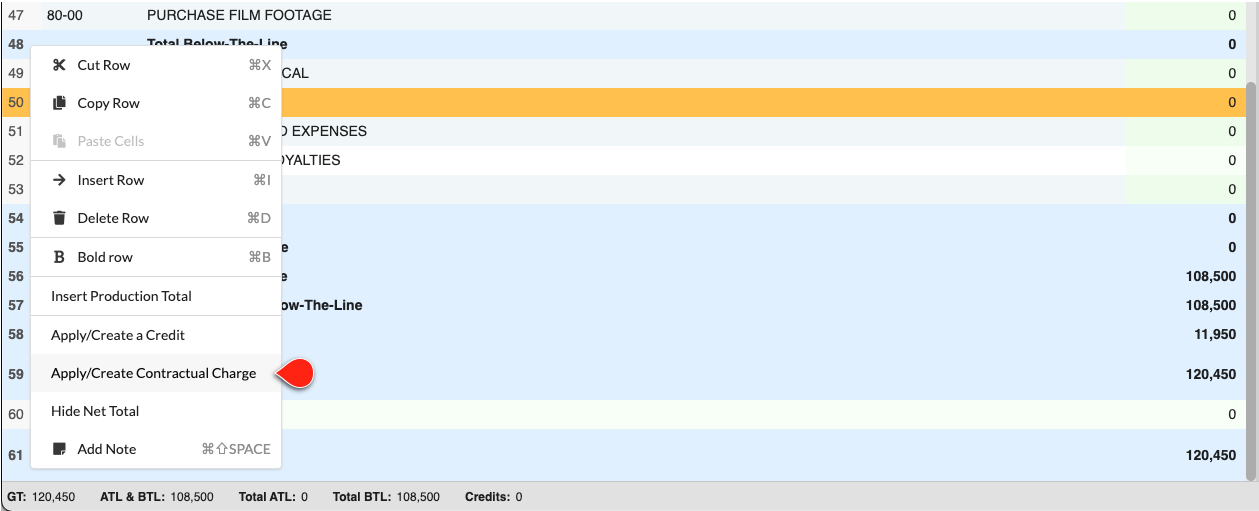
Get to the Charges Setup screen by RIGHT-CLICKING a row in the Topsheet and selecting Apply/Create Contractual Charge, clicking Ch (charges) in the top navigation bar, or using the CTRL + / or CMD + / hot key.
Applying a Charge
- In the Charges Setup screen...
- Select the charge you want to Apply
- Click the
APPLY CHARGEbutton
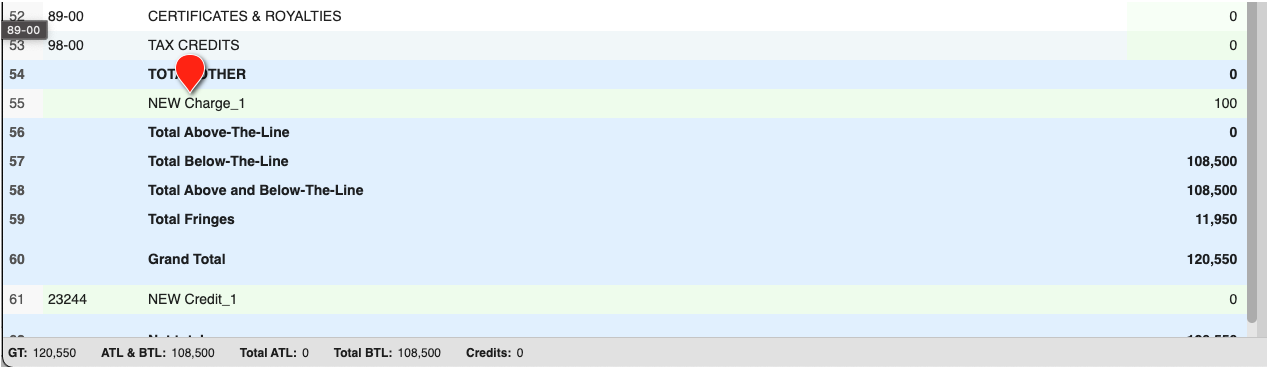
The charge will now appear in the Topsheet between all your Categories and your ATL/BTL/Grand Totals. Your budget will be recalculated automatically.
Un-Applying a Charge
- In the Charges Setup screen...
- Select the charge you want to un-apply
- Click the
UN-APPLY CHARGEbutton
The charge will be removed from the Topsheet. Your budget will be recalculated automatically.
Charges Tab (CH) in the Apply Tools Pane
The CH tab in the Apply Tools Pane lists each Contractual Charge in your budget by its Topsheet category description along with its calculated total, so you can review charges without opening the Setup screen.
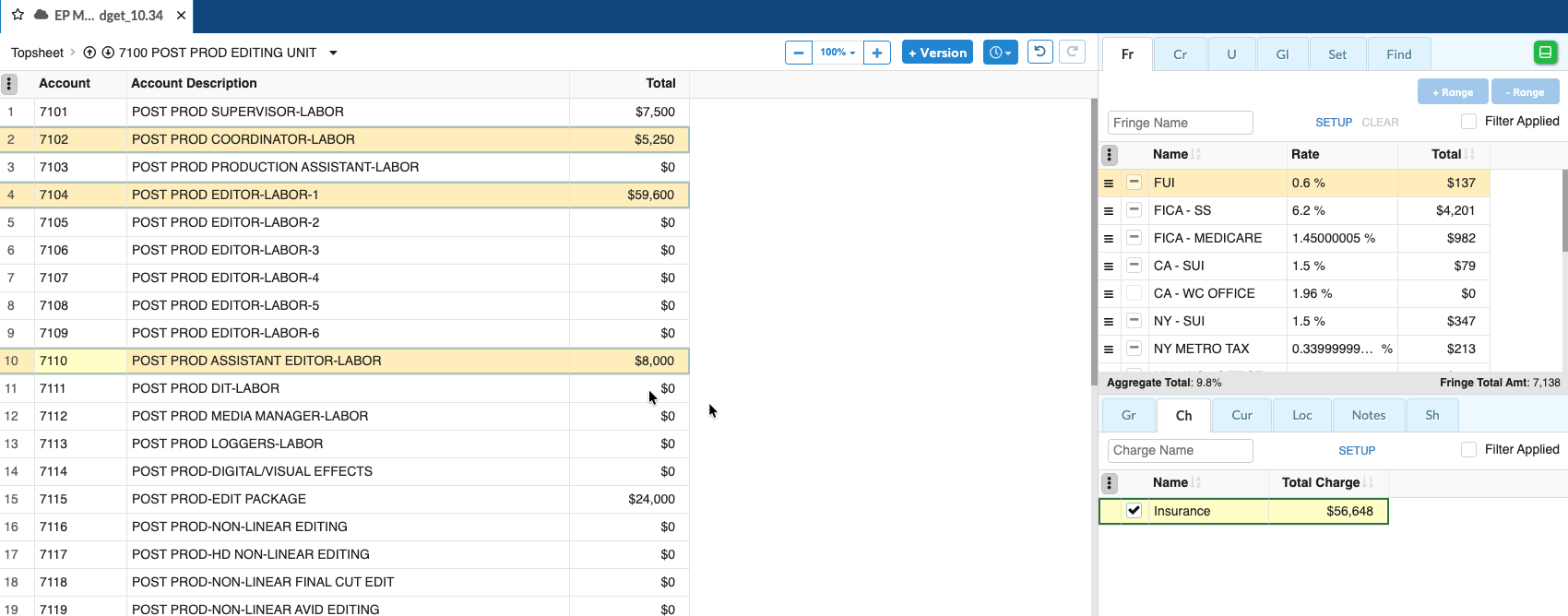
From the Topsheet or Category level you can exclude a highlighted row from a charge:
- Highlight the Category or Account row you want to exclude
- Uncheck it in the
CHtab
The charge total recalculates to reflect the exclusion. Exclusion checkboxes are disabled at the Detail level.