Budget Comparison
Movie Magic Budgeting compares your base budget against up to 15 other budgets (16 total in view). You can compare Categories and Accounts that share matching Account Numbers. To compare detail lines across budgets, use Split-Screen Mode instead.
Start a Comparison
- Open the budget you want as your base
- Usually the most recent version, or the parent budget when comparing to sub-budgets
- Click
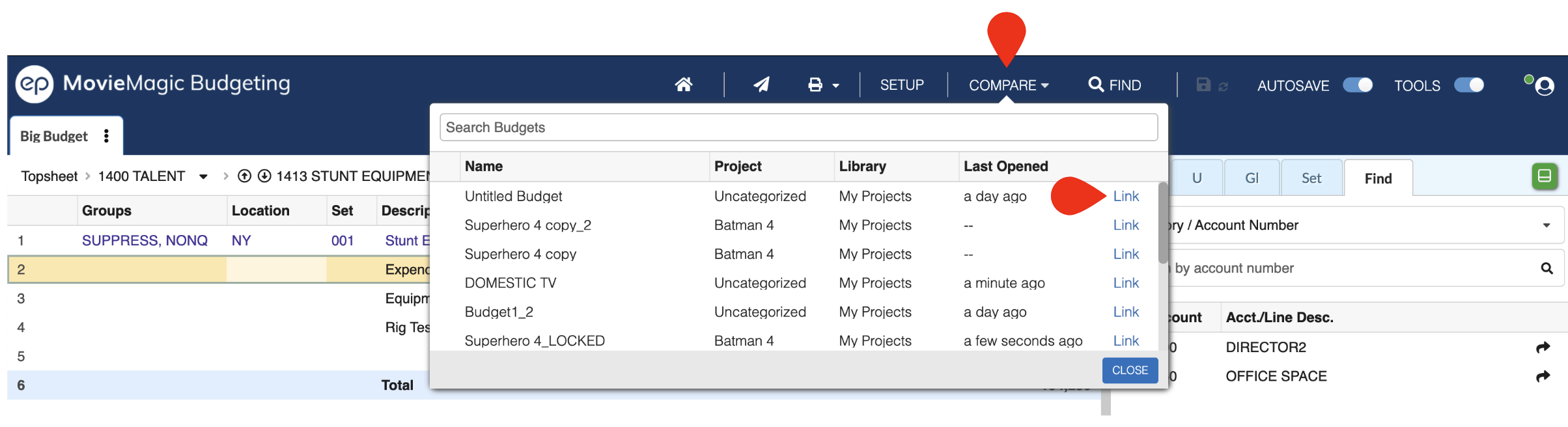
Comparein the top navigation bar to open the Compare to Base Budget dialog - Click
LOAD FROM CLOUDto pick budgets to link- The picker shows budgets from your cloud-synced project folders only
- Budgets stored under
On This Devicemust be imported to the cloud first; the dialog includes this reminder - Budgets in Archive and Trash cannot be linked
- Select the budgets you want to link and click
CLOSE & PROCEED
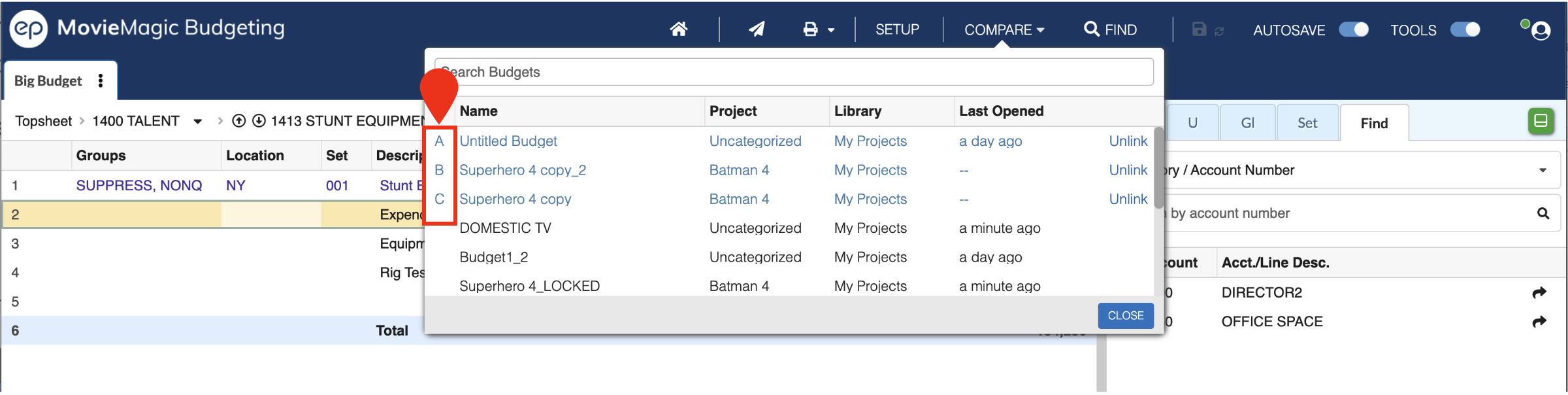
You can link up to 15 budgets. The dialog lists them in numbered columns (1, 2, 3 … 15). Drag any row by its handle to reorder columns; REMOVE SELECTED drops a linked budget from the comparison.
Base Budget Position
By default the base budget column sits on the right of the linked budgets. To move it:
- Open the Compare menu
- Check
Base Budget on Left - The base budget shifts to the leftmost position; linked budgets shift one position right
The setting persists for the duration of the comparison and is reflected in the Comparison Report.
Comparison Navigation
The Topsheet and Category levels of the base budget are replaced by the Comparison view. Each linked budget is identified by its numbered column (1, 2, 3 … 15) in the Topsheet header.
Note: Cut, Copy, Paste, Insert, and Delete are unavailable at the Topsheet or Category level during a comparison.
At the Account Detail level you only see and act on the base budget. Edits there change the reported amounts in the Comparison.
Comparison Columns
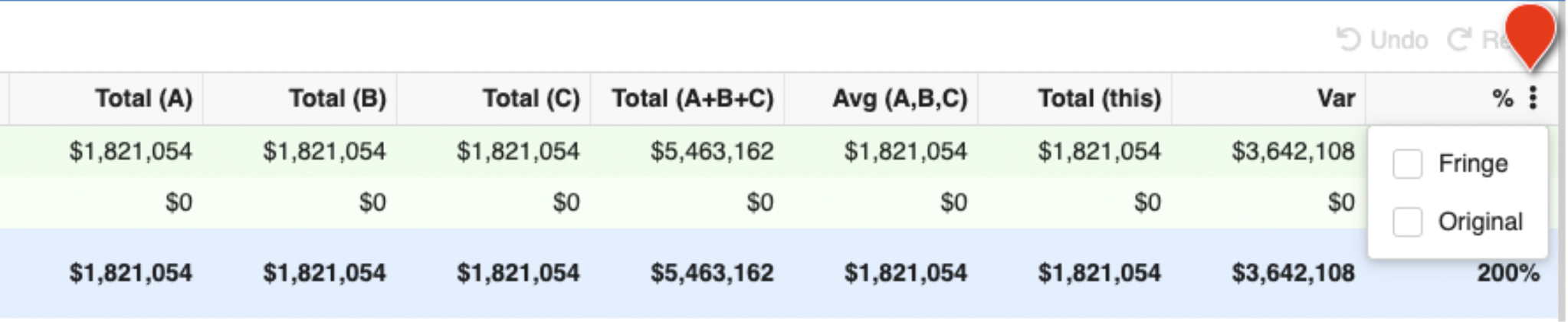
| Column | Description |
|---|---|
| Total (1, 2, 3 … 15) | Total for the category or account in each linked budget |
| Total (sum) | Sum across all linked budget totals |
| Average | Average of the linked budget totals |
| Total (this) | Total for the category or account in the base budget |
| Variance | Total (sum) minus Total (this) |
| % | Variance as a percentage of Total (this) |
The Original and Agg Fringe columns can be added through the column menu, but they only show data for the base budget.
Column borders snap correctly when you resize the Total column with Original and Variance columns visible (fixed in 10.33.28).
Closing a Comparison
- With a comparison open, click
Comparein the top navigation bar - Click
REMOVE SELECTEDfor each linked budget (orUnlinkper row) - Once every budget is unlinked, click outside the Compare menu
The base budget returns to normal editing.
Comparison Report
- With a comparison open, click
Reports Setup - Select
Comparison Reports
The report works like a standard Budget Report. The Included Sections button controls whether the Comparison Topsheet or Comparison Accounts pages appear. When Base Budget on Left is selected, the report places the base budget on the left of every page.
When comparing a Sub-Budget against its parent (the typical what-if scenario), open the parent as the base and link the sub-budget.