System Preferences: Overview
System Preferences control how your version of Movie Magic Budgeting will present information.
Opening System Preferences
- Open a budget
- Select
Setup > Budget Preferencesfrom the app menu / file menu - The system will display the Budget Preferences window
- Click to open the
System Prefstab - To return to your budget, close the Budget Preferences window
You can also access Budget Preferences with the keyboard shortcut CMD + 9 on a Mac or CTRL + 9 on a PC.
Budgeting Grid Display
These options control how the grid will display in your application.
| Option | Description |
|---|---|
| Alt Row Shading | This turns on or off the light grey shading on alternating rows |
| Horiz. Lines | This turns on or off horizontal lines between each row |
Numerical Display Preference
A toggle in System Preferences controls how numerical values display in the Amount and Multiplier columns. In its default state, fractions you type stay in fraction form (for example, 1/3 remains 1/3). Switching the toggle converts fractions to their decimal equivalents on commit (for example, 1/3 displays as 0.3333).
The preference applies to all open budgets and persists across sessions. The underlying value used in calculations is unchanged; only the display format changes.
Decimal Display on Totals
By default, totals and subtotals display as whole numbers. Turn on decimal display to show cents on your totals, which helps when reconciling or exporting to Excel.
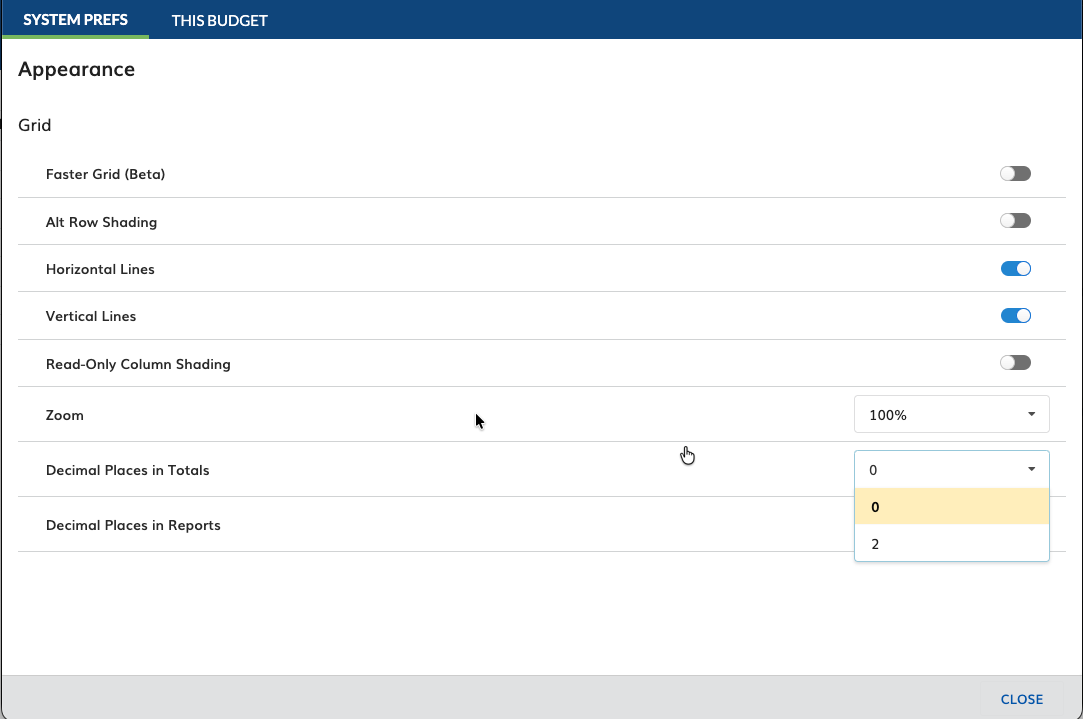
- Open the
Totalsoptions in System Preferences - Turn on decimal display and choose the number of decimal places to show
The setting is off by default and applies at the Topsheet, Account, and Detail levels, the same way the Rate column handles decimals. You can turn decimals off for an individual report in Report Setup, and the Excel export follows whatever this setting shows.
Grid Zoom Default
Set the default grid zoom for budgets that do not have their own saved zoom level. A zoom level saved on an individual budget takes precedence over this default.
Help Menu
The Help & Tutorials window and the F1 shortcut were removed in 10.32.8 while the video tutorials are rebuilt. The Movie Magic Budgeting Manual is now available from the application's Help menu, and the Keyboard Shortcuts reference opens with SHIFT + F1 and can be repositioned anywhere on screen. See Getting Help for details.