Open & Manage Budgets Screen
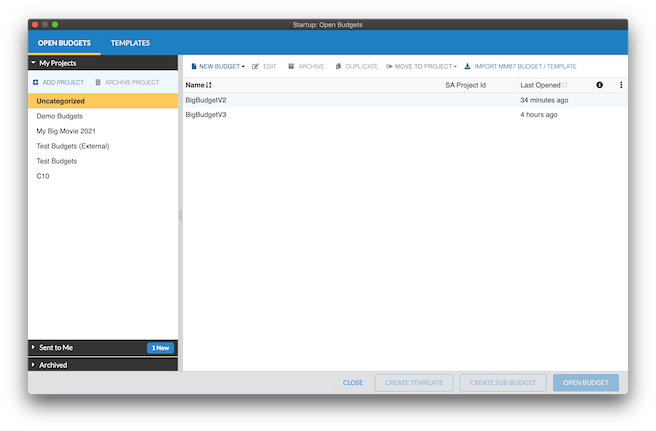
When you sign in to Movie Magic Budgeting 10, you land on the Open & Manage Budgets screen, Startup: Open Budgets window.
Return to the Open Budgets window any time by:
- Selecting
File, thenOpen & Manage Budgets. - Use the
Homebutton in a budget window. - Press
CMD + Oon a Mac orCTRL + Oon a PC.
Projects
Projects allow you to organize and keep track of your work. Organize your budgets into projects in the left panel of the Open Budgets window. By default, new budgets you create or import display in the Uncategorized area under My Projects.
For in-depth instructions, go to the section on Projects.
Folder Organization
The left rail of the Open & Manage Budgets screen organizes your budgets and templates into system folders (My Projects, Sent to Me, Favorites, Archive, Trash) and any user folders you create. User folders can be nested up to five levels deep.
Alphabetize Folders
An A–Z sort icon sits next to the + icon for both My Projects and Sent to Me. Each section has its own toggle. One click sorts every folder level inside that section at the same time.
Each click cycles the sort:
- First click: A–Z across every folder level
- Second click: Z–A across every folder level
- Third click: return to your custom (drag-to-reorder) order
Uncategorized is excluded from the sort. The selected sort state persists across sessions. Alphabetize is not available in Archive or Trash.
Archive Folder
To archive a budget or template, right-click it and select Archive, or drag it into the Archive folder.
Archived budgets are export-only. The OPEN BUDGET, +VERSION, and CREATE SUB-BUDGET actions are disabled while a budget sits in the Archive. Move the budget back to a regular project folder to edit it.
Trash Folder
Deleted budgets and templates move to the Trash folder until you permanently delete them.
- To recover a budget, right-click it and select
Move Toto send it back to a project folder. - To remove a budget for good, select it and click
DELETE PERMANENTLY.
Move To Search
The Move To modal accepts a search string so you can find a destination folder without scrolling through nested levels. Type any part of the folder name to filter.
You can also create a new folder from the modal: click + NEW FOLDER, name it, and the budget moves into it.
On This Device
Budgets you create or import locally stay on the current device until you sync them to the cloud. Cloud-only features (such as Compare) require the budget to be imported to the cloud first.
To see only the budgets that live on the current device, click On This Device in the left rail. From there you can browse, open, or import a local budget to the cloud.
Favorites, Nested Folders, and Created Date
Favorites
Click the star icon next to any budget to mark it as a favorite. Favorited budgets appear in the Favorites system folder. Favorites persist across your devices.
Nested Folders
User folders can be nested up to five levels deep. Drag one folder onto another to nest it, or use Move To from the right-click menu.
System Folders vs. User Folders
System folders (My Projects, Sent to Me, Favorites, Archive, Trash) have a distinct icon and cannot be renamed or deleted.
Created Date Column
The Created Date column in My Projects and Sent to Me shows when each budget was first saved, in your local timezone. Click the column header to sort by date.
Budgets, Not Files
Movie Magic Budgeting 10 uses integrated database and cloud technologies to keep your budgets and libraries updated and synched across your devices. As a best practice, organize and manage your budgets within the application to leverage these features.
You can still work offline.
For in-depth instructions about creating and organizing your budget, go to the section on budgets.
If you need to export a file for audit or archival purposes, or if someone sends you a file to open outside of MMB 10, go to the section on Importing & Exporting Budgets.