Fringe Settings
In Budget Preferences you can determine where you expect fringes to be posted. In other words, where do the costs associated with any applied fringe appear in the budget.
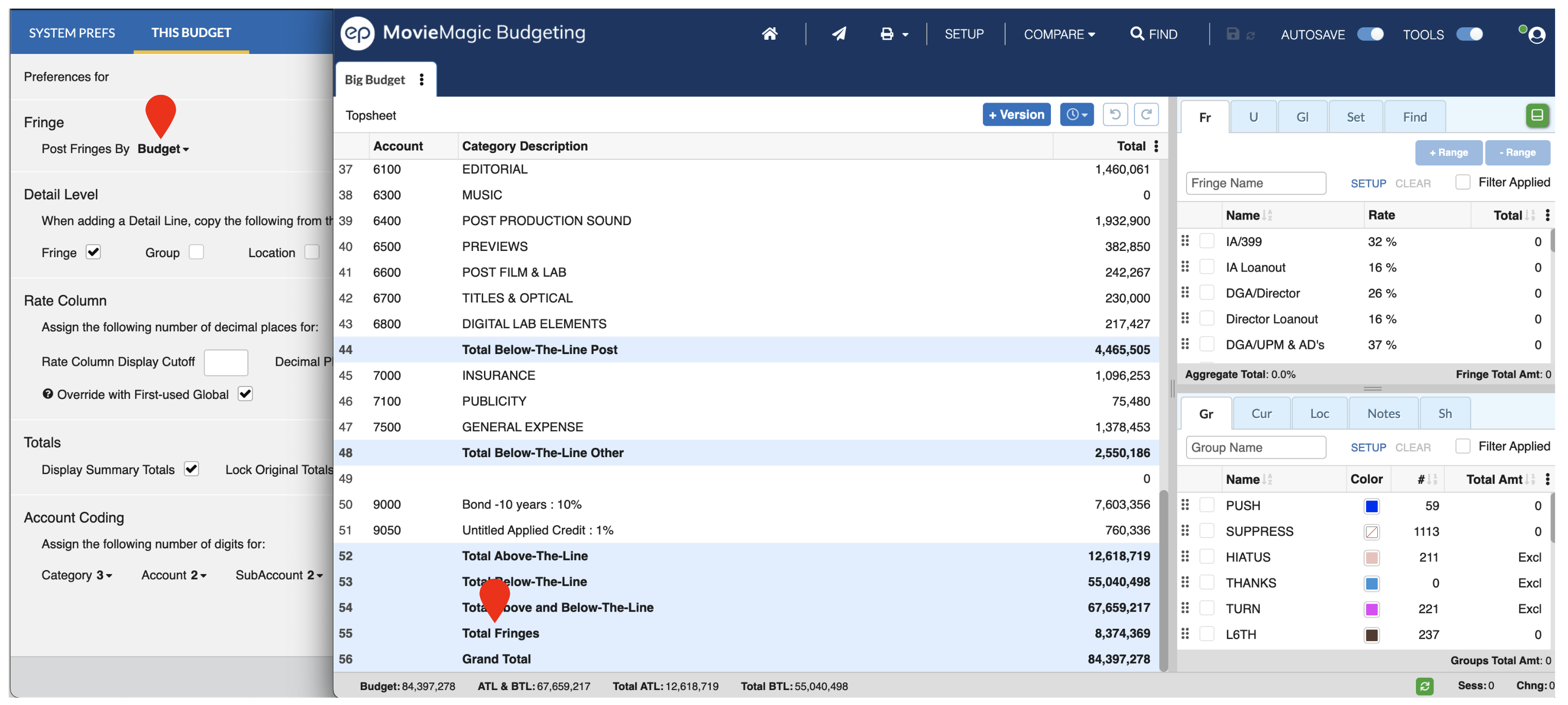
Post Fringes by Budget
Posting Fringes by Budget will total all fringes across all accounts and report them in a single line in the budget topsheet. This line appears directly before the Grand Total.
Two optional fields control how this single fringe line appears:
- Fringe Category Account Number — the account number printed for the fringe line in the Topsheet (for example,
4). If left empty, no account number displays for the line. - Fringe Category Account Description — the descriptive label for the fringe line (for example,
POSTE 4 - CHARGES SOC). The field shows the placeholder textDefault: Total Fringesin grey when empty. If left empty, the line displays the default labelTotal Fringesin the Description column.
These fields support international accounting conventions where the fringe total needs both a specific account code and a localized description.
You can also reposition the fringe-total line anywhere in the Topsheet via the right-click context menu. See Topsheet Structure for details.
Post Fringes by Production Level
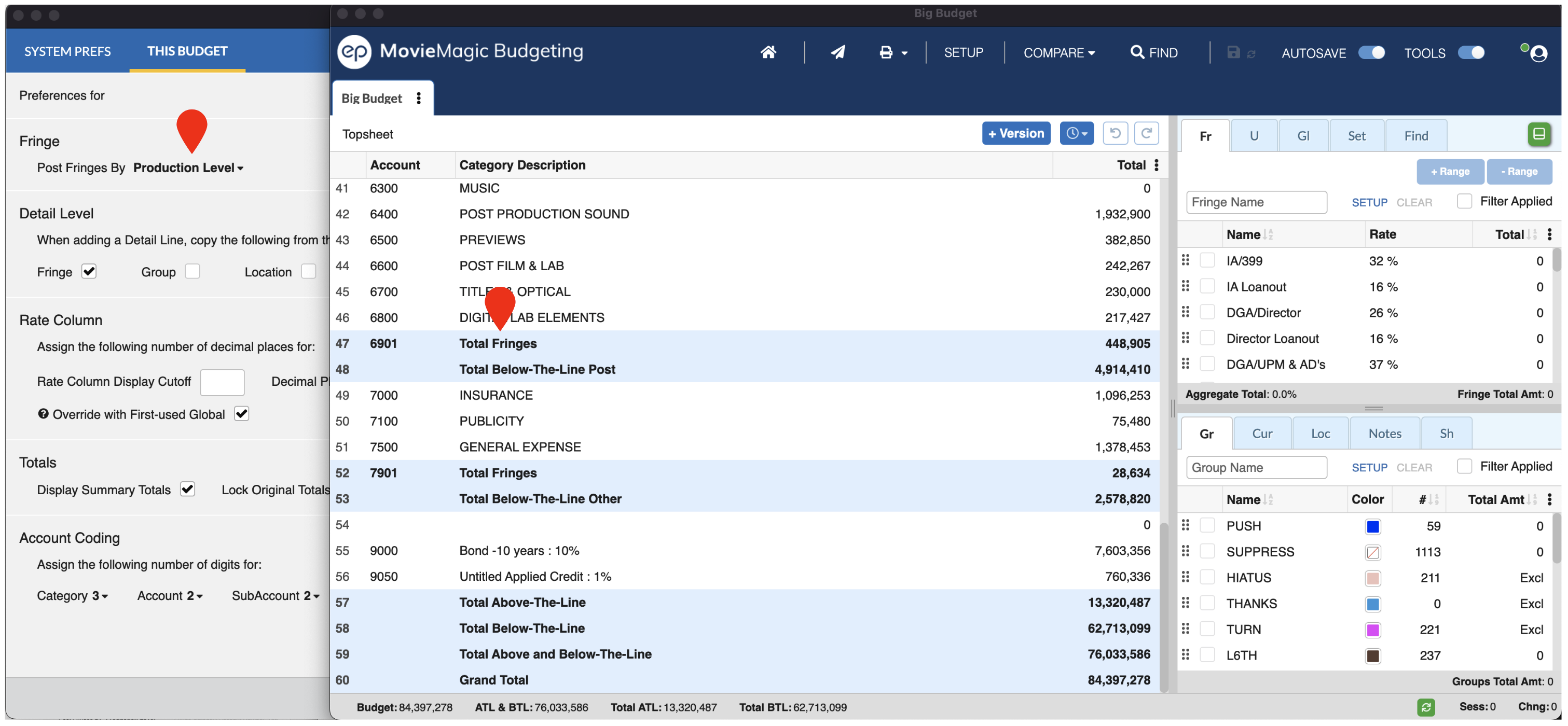
Posting Fringes by Production Level will total all fringes across the accounts within a given Production Level and report them in a line directly before the Production Total for that section on the topsheet.
When a Fringes are posted by Production Level, the Account for that Total Fringe line is editable in the topsheet.
Post Fringes by Category
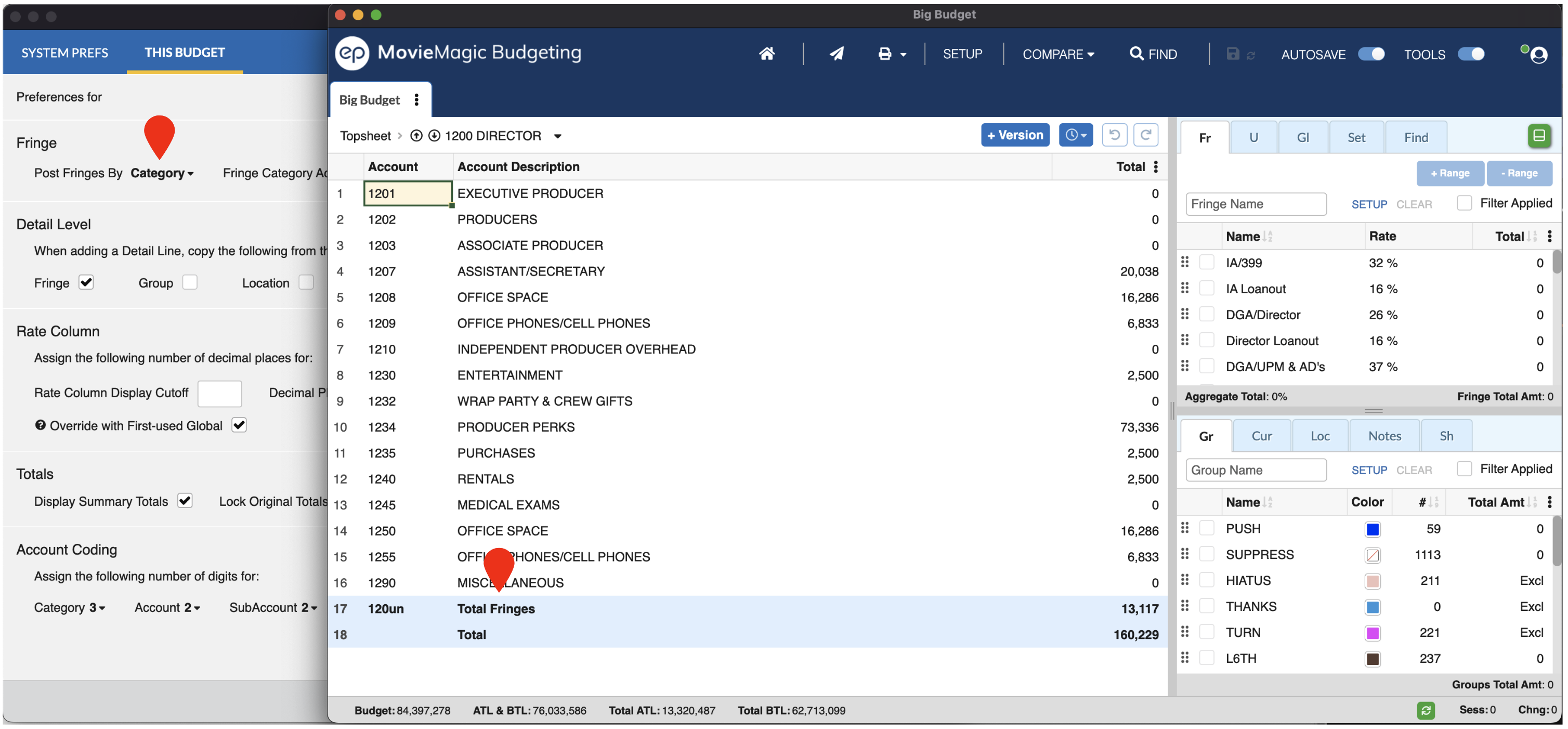
Posting Fringes by Category will total all fringes across the accounts in a given Category (or "header account") and report them in a single line at the end of the Category.
When posting Fringes by Category you can select the Fringe Category Account Number that will be automatically applied to the Fringe "Account" in the budget for each such total.
For example, if your Account Coding expects a Category of 2 digits and an Account string of 3 digits, you might enter 099 for the Fringe Category Account Number. In that case Category 10-000 would have a Fringe account labeled 10-099 and Category 20-000 would have a Fringe account of 20-099.
If your Fringe Category Account Number is longer that your designated Account Coding it will be truncated. If it is shorter, it will be filled with leading 0's. See Account Coding for more details.
If your Category has a letter as a part of it's Account string, then the Fringe Category Account Number will use that when establishing your final Fringe Account Number.
For example, if your Category is written as 1A00 and your Fringe Category Account Number is written as 99, then the Fringes will be posted to account 1A99.
Post Fringes by Account
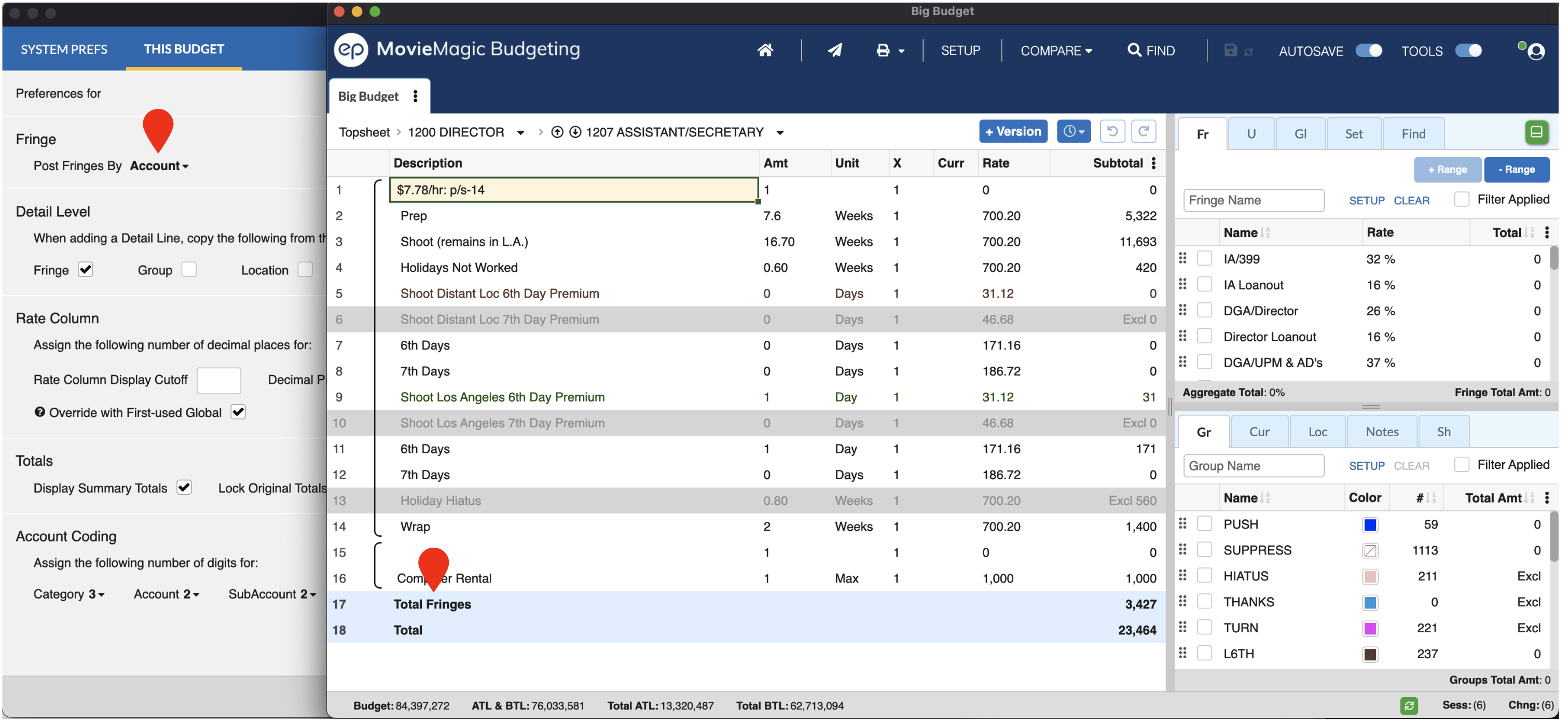
Posting Fringes by Account will total all fringes across the detail lines in a given Account and report them in a single line at the end of that Account.
Percentage Fringe Cutoff Factor
The Percentage Fringe Cutoff Factor sets how percentage fringe cutoffs are scaled in this budget. It appears in Budget Preferences under the Fringe section, with a default of 1.0 and options from 1.0 to 3.0 in 0.5 steps.
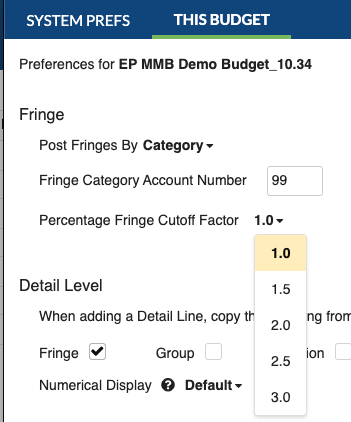
The value persists on save, reopen, and export. A budget imported from MMB7 keeps the factor it carried, so a non-default value from an older budget is now visible and editable here rather than changing fringe calculations with no on-screen explanation.