Groups
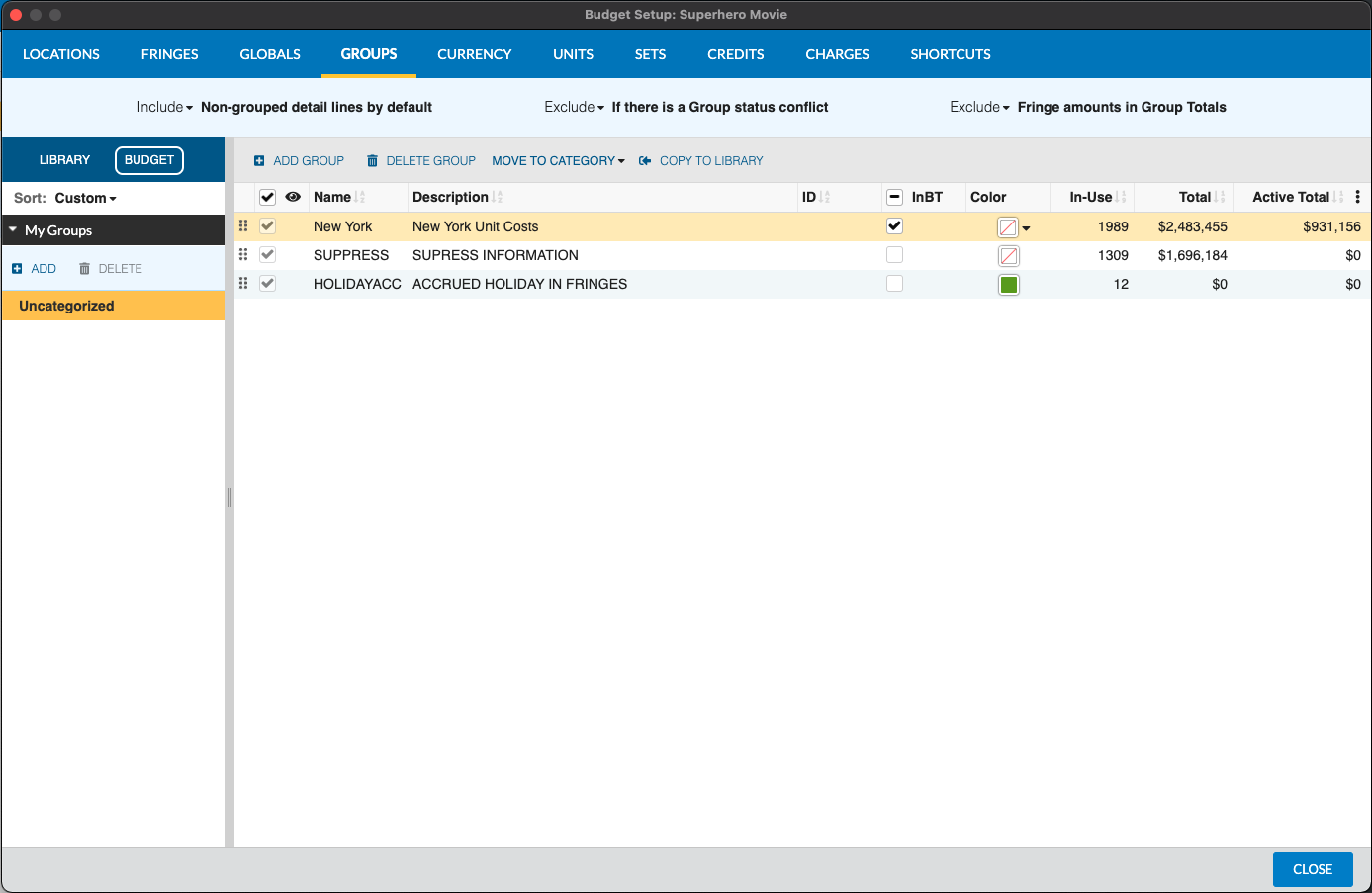
Groups allow you to tag lines of Detail to identify, suppress, or roll-up costs without making permanent changes to your budget. Groups are especially useful for budget comparisons, “what-if” scenarios, and other sub-budget uses.
Groups can be assigned different colors for easy identification.
Add a new Group
- Open a budget and click the
Gr (Groups)setup option- You can also press
CTRL + 4on a PC orCMD + 4on a Mac
- You can also press
- Click to
+ ADD GROUP- Or select a row and press
CTRL + ion a PC orCMD + ion a Mac
- Or select a row and press
- Click to enter the
NAMEcolumn for your new Group- A unique name is required for any Group
- (Optional) Add a
DESCRIPTIONfor your Group - (Optional) Add a short
IDto use in place of the name for this Group. - Uncheck
InBTto suppress lines added to this Group from the budget total - (Optional) Select a color for this group
- (Optional) Select a color priority for this group
Groups that are not selected as InBT are considered "Excluded" (sometimes called "Suppressed"). Any Detail lines that are assigned to that group will be marked with a light grey color and not included in budget calculations or totals.
Color Priorities
You can mark up to 20 Groups as having color priority. Whichever Group is given the highest Priority (1 being highest priority, 20 being lowest) will force their color to display for lines they are applied to over any other group. If only Groups that do not have a priority are assigned to a line, then the last applied Group will decide the color for that line.
Edit the Priority column in the Setup table to determine the Priority for a given Group. If you select a priority that has already been assigned to another Group, the priority of your current group and the target group will be switched.
For example, if GROUP A in Red is assigned Priority 1 and GROUP B in Blue is assigned Priority 2, then any line assigned to both GROUP A and GROUP B will be shown in Red. If you choose to change the Priority for GROUP B to Priority 1 then GROUP A will be switched to Priority 2
Display Order
The Display Order column (1–20) in Groups Setup controls which Group name appears first (leftmost) when more than one Group is shown in a budget column or report. Lower numbers display first.
Display Order is independent from color priority. Two groups can share the same color priority but display in different orders, and vice versa.
Mass Apply Groups
You can apply a Group to multiple categories or accounts at once from the Topsheet without drilling into each row.
- Select one or more rows in the Topsheet
- To select multiple non-adjacent rows:
CTRL + CLICKon a PC orCMD + CLICKon a Mac - To select a contiguous range:
SHIFT + CLICK
- To select multiple non-adjacent rows:
- Right-click any selected row and choose
Apply Group - Select the Group from the submenu
The Group is applied to every Detail line currently under the selected categories or accounts (cascading from the selected level down through every Detail row). Detail lines added to those categories or accounts after the Mass Apply runs are not auto-tagged; re-run Mass Apply to include them.
If the selected rows already have partial Group coverage, the submenu shows a tri-state indicator for the affected Group so you can see whether you'll be adding to a complete set, partial set, or empty set.
See Applying Groups for details on Group application behavior.
Delete a Group
- Select the row of the Group to be deleted
- Click on the
DELETE GROUPbutton- Or press
CTRL + Don a PC orCMD + Don a Mac
- Or press
If the selected Group is in-use somewhere in your budget, you will be warned that this may cause errors in your budget. If you are sure, select Delete Group to confirm.
The selected Group will be deleted from your budget and your totals recalculated based on this change.
Apply Groups
See Applying Groups for details on using Groups in your Budget.
Print Groups
See the printing reports section to find out how to print a report of the Groups in your budget.