Reports & Printing: Overview
You can print or generate a PDF report of your entire budget or selected parts of it at any time. The reports interface lets you make changes to the layout without altering your budget window, and "what you see is what you print."
Accessing Reports Setup
Click on the Reports drop-down in the top navigation bar and select Report Setup. You can also press CMD + SHIFT + P on a Mac or CTRL + SHIFT + P on a PC.
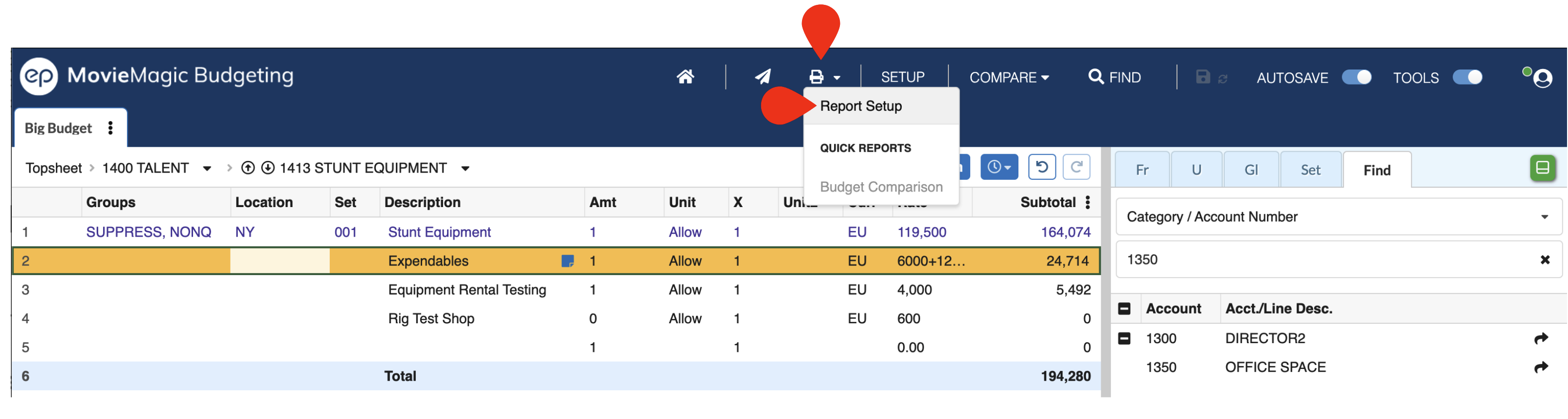
Note: Toggle the Apply Tools pane on or off without leaving the keyboard with CTRL + SHIFT + A (PC) or CMD + SHIFT + A (Mac). Net Totals visibility is managed in Setup > Budget Preferences > Totals (see Budget Preferences).
Report Templates
You can save multiple report arrangements as templates within a budget, and you can export those templates to portable .MMBJ files to reuse them across budgets or share them with colleagues.
All template actions — Add, Edit, Delete, Import, and Export — are consolidated in a single toolbar at the top of the Templates for this Budget panel.

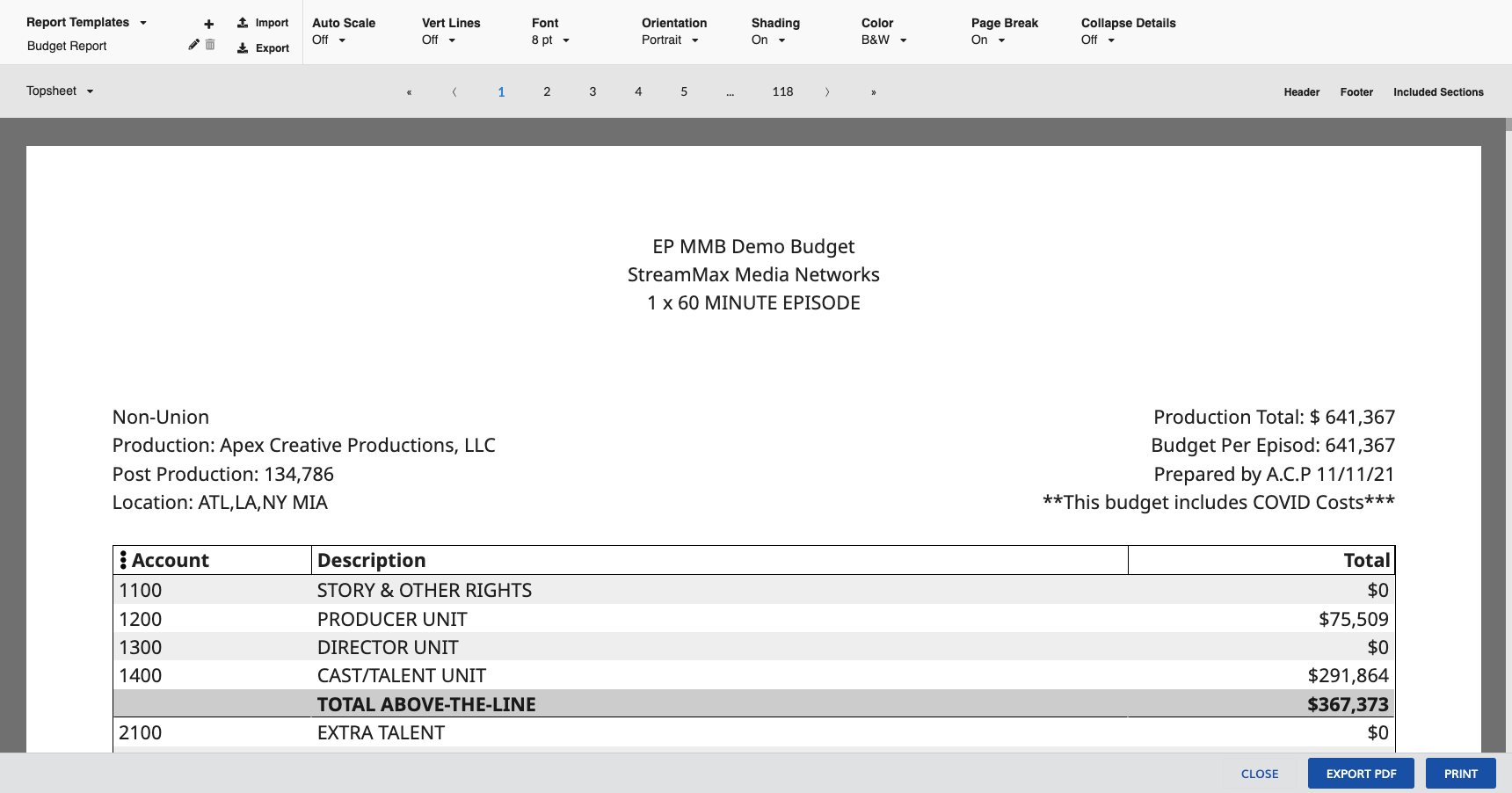
Note: Create a new template before making any changes you want to isolate. Changes made while a template is selected are saved to that template.
Create a Template
- Open the
Report Setupscreen - Click
Templates for this Budgetin the top left - Click
+ NEW REPORT TEMPLATE - The new template is created with the name
NEW Untitled Print Template - Click the template name to edit or change it
Switch to or Edit a Template
- Open the
Report Setupscreen - Click
Templates for this Budgetin the top left - Click to select the template you want to use
Any changes you make to your report settings, including Included Sections, formatting options, and which Header/Footer Template is used, are saved to the currently active template.
Export a Template
- Select the template you want to share or save
- Click
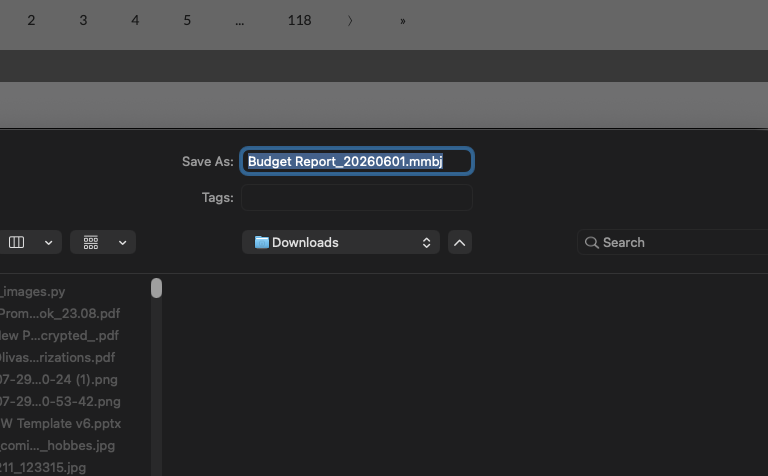
EXPORTin the templates toolbar - Choose a location to save the
.MMBJfile - The exported file contains the complete report configuration: included sections, exclusions, formatting options, and header/footer assignments
Import a Template
- Open the
Report Setupscreen - Click
IMPORTin the templates toolbar - Select the
.MMBJfile - The template is added to your current budget and selected
Report Formatting Options
You have options to control the formatting and look of your report.
| Option | Description |
|---|---|
| Vertical Lines | Turns on or off vertical lines between columns in the report |
| Font Size | Defaults to 8pt. Raise it to 10pt, or reduce it to 6pt or 5pt to fit more rows per page in dense reports. The selected size is saved with report templates. |
| Orientation | Switches between Portrait (vertical) and Landscape (horizontal) page orientation |
| Report Shading | Turns on or off the light grey background to alternate rows; does not change the shading on total rows |
| Group Color | Determines if lines colored by their applied groups should be shown in that color or plain black & white |

Report Sections
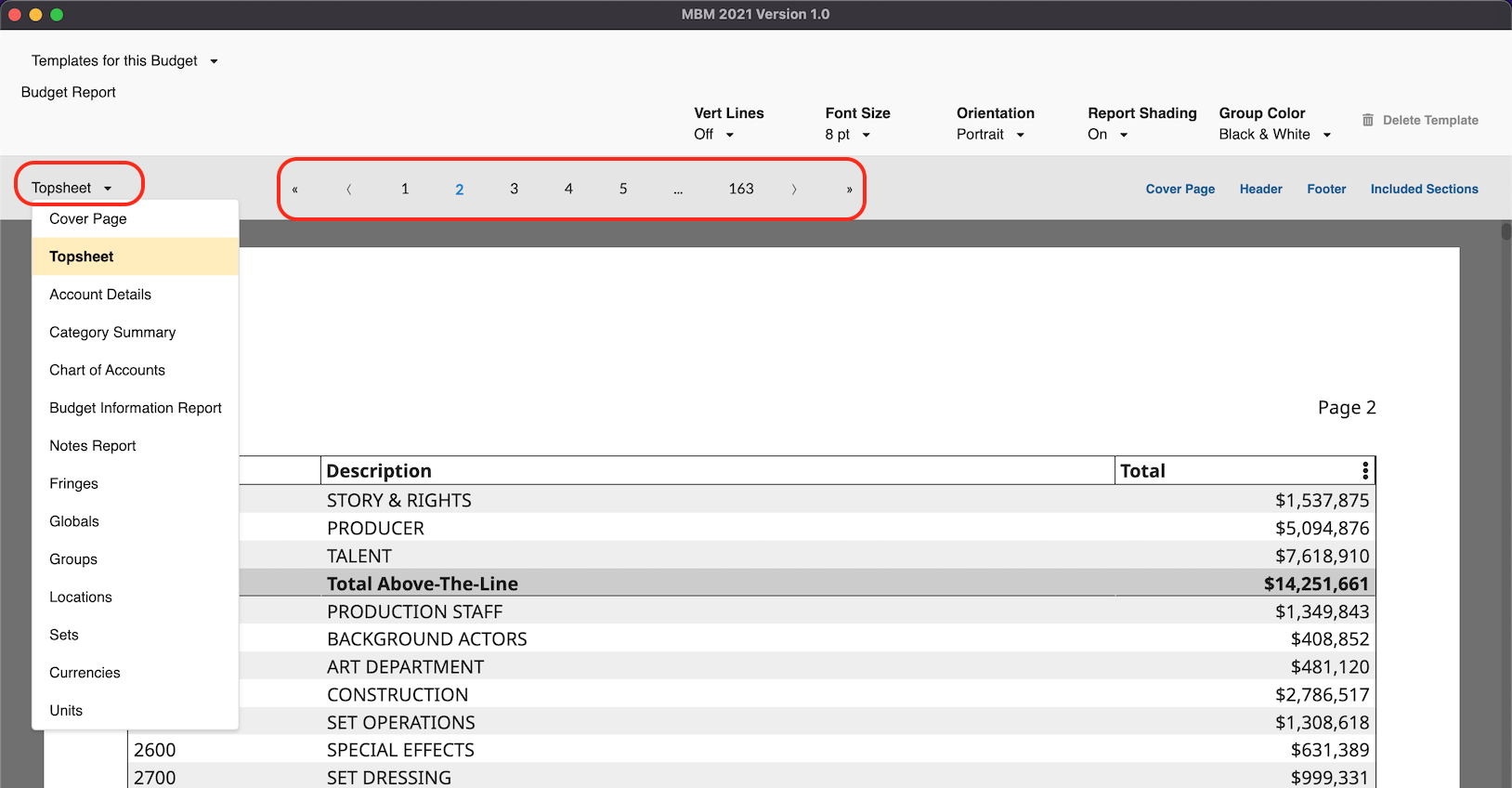
Use the left quick-navigation drop-down menu to skip to any page of the report based on its section (Cover Page, Topsheet, Category Summary, Account Details, Chart of Accounts, etc.).
You can also use the page numbers and Previous/Next buttons across the top of the interface, or simply scroll through the entire report.
Included Budget Sections
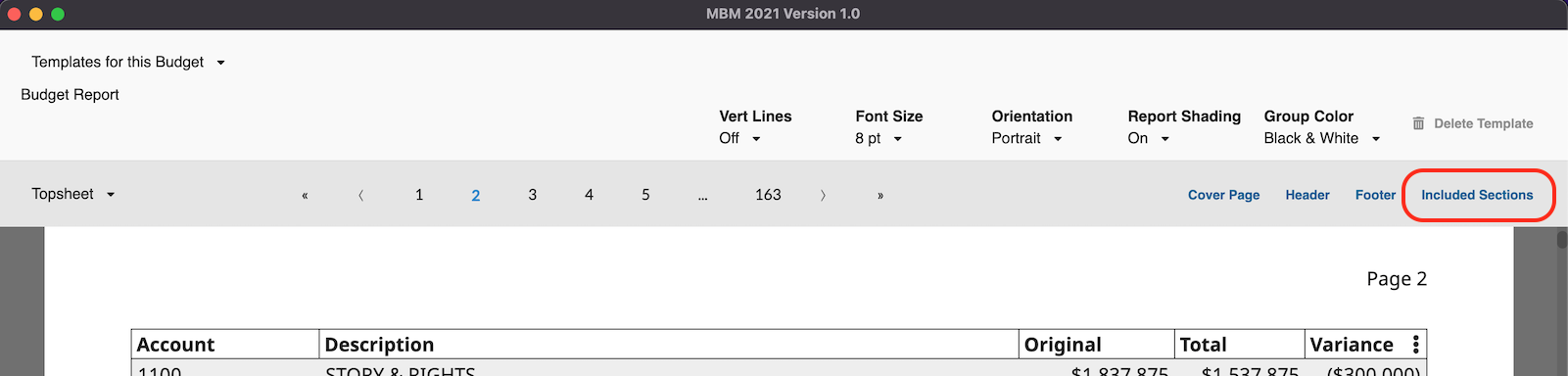
To select which reports to run and which accounts are included, click the Included Sections button on the right-hand side of the Reports Setup Screen.
See Included Sections for more details.
Adjusting Report Columns
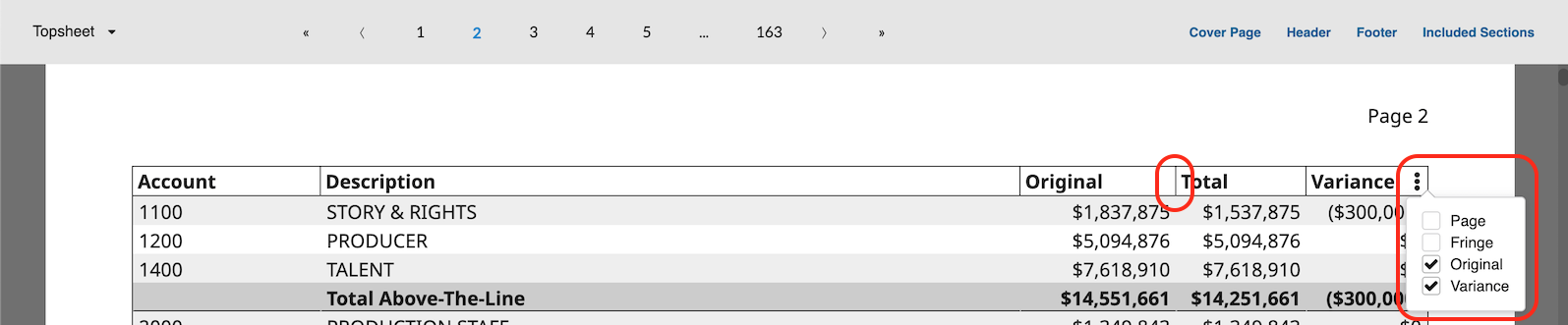
Column widths can be adjusted by dragging each column divider. You can show or hide columns by opening the menu button (three dots) in the column header and selecting the columns you want to display in the report.
Cover Page, Header, & Footer
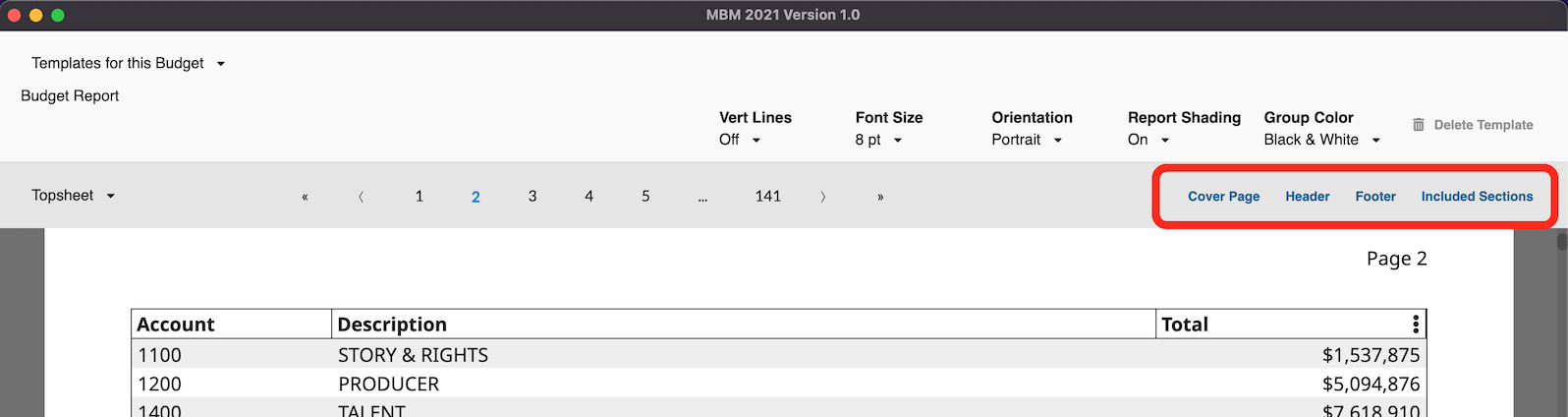
Click the Cover Page, Header, or Footer buttons anywhere in the report to access the Cover Page, Header, and Footer screen.
See Cover Page, Header, and Footer for more details.
Outputting Your Report
Once you have made all the selections you want for Included Sections, report formatting, and layout, click EXPORT PDF to save a PDF file of your report or click PRINT to print directly to your connected printer. Depending on your system setup you may need to take a couple of additional steps to trigger the print.