Reports: Included Sections
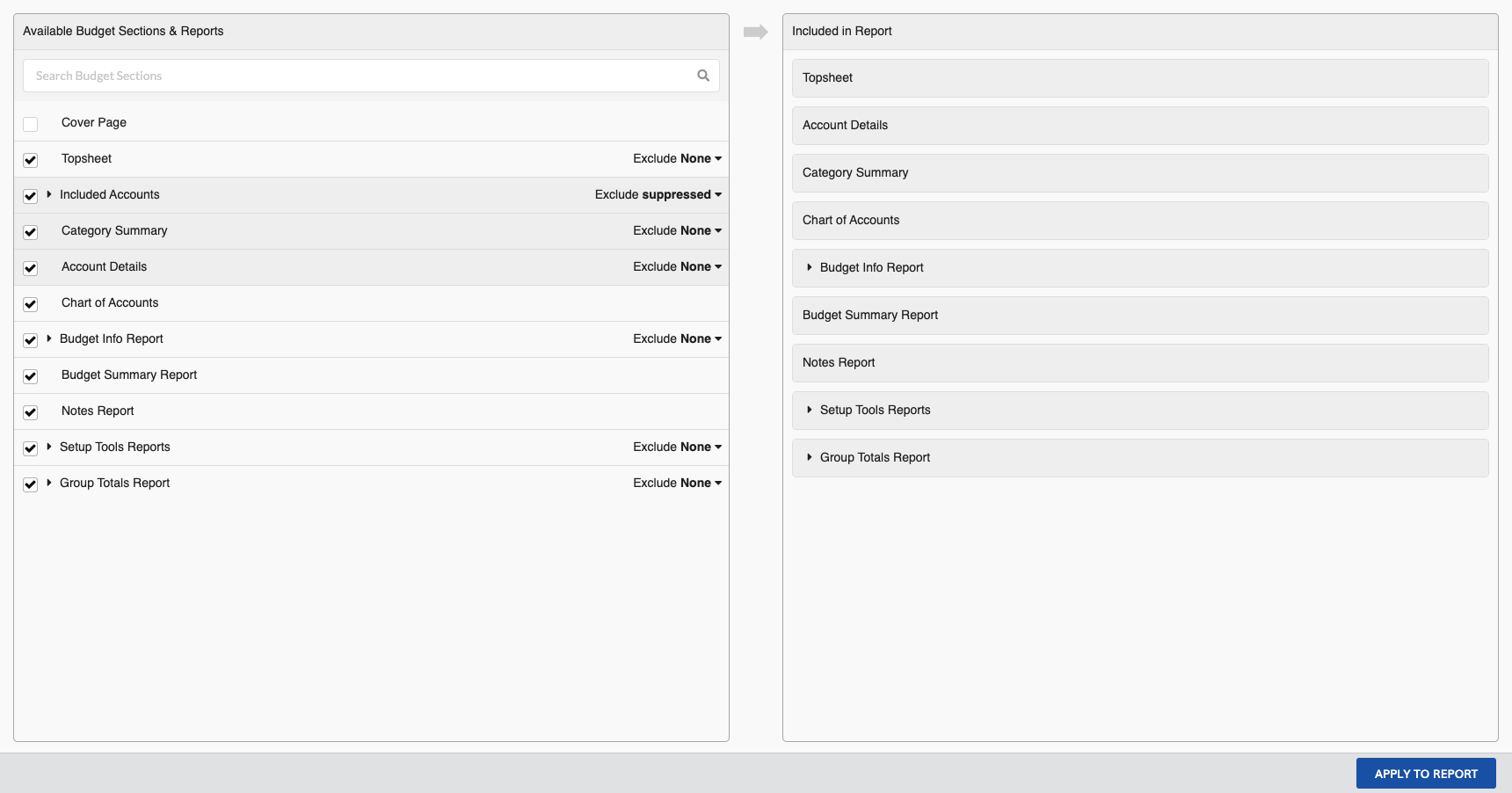
The Included Sections page decides which reports you are printing, and for key reports, which accounts are included in the output reports.
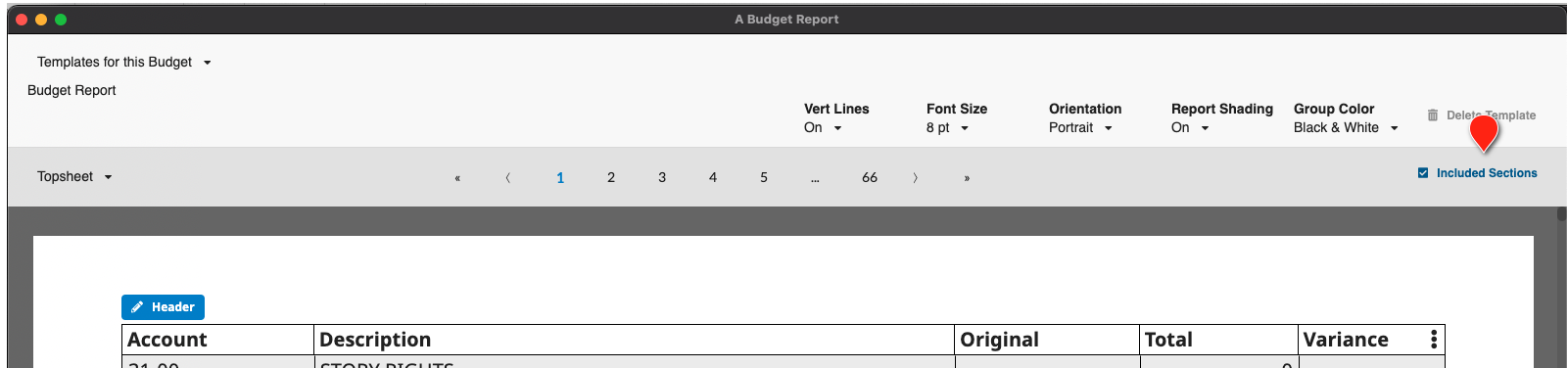
Accessing the Included Sections screen
- Open the Reports Setup screen
- Click
Included Sectionsin the top right of the screen - The Included Sections page will open
Tri-State Checkboxes
Parent section checkboxes (such as Included Accounts or a Category header) show one of three states based on their descendants:
- Checkmark — all descendants are checked
- Dash — some descendants are checked
- Empty — no descendants are checked
Clicking a parent in the dash state checks all descendants. Clicking a parent in the checkmark state unchecks all descendants. State cascades up through every parent level.
Selecting Accounts
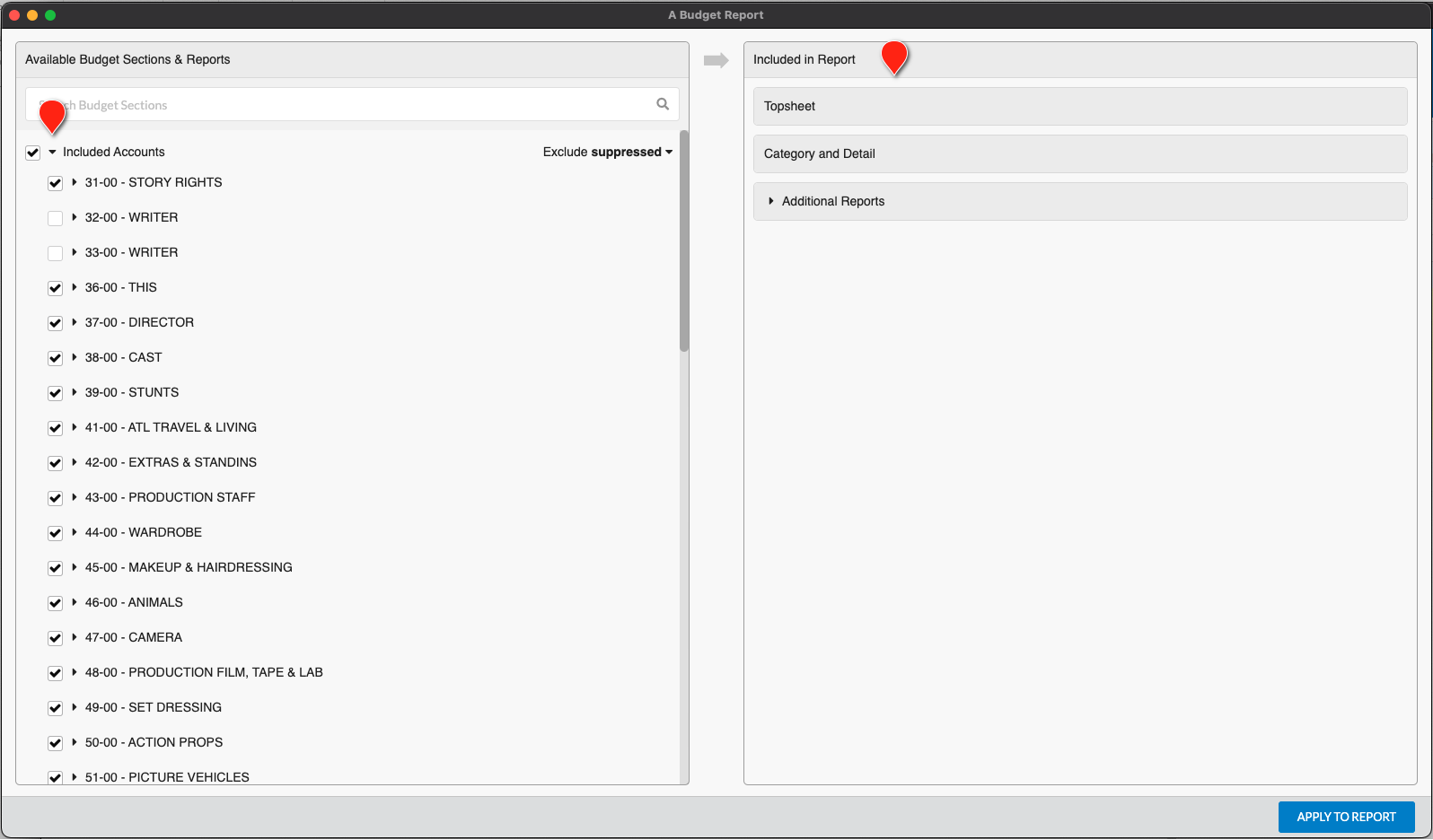
For the Category Summary and Account Details reports you can select which accounts will be shown in your report and whether empty or zero accounts are displayed.
To select specific accounts:
- Click the
Included Accountsheader to display all Categories in your budget - Click a
Categoryheader to display all Accounts in that Category - Click the checkboxes to select or deselect any Account
- You can easily uncheck the
Included Accountsheader to unselect everything, then pick what you do want included in your budget - If you want to keep a Category header, but not include any of the Accounts within it you can click
Uncheck all Accounts (Keep Category)in the Category section
- You can easily uncheck the
Note: If Fringes are posted by category then the Fringe accounts will be available to select or unselect for your report.
Hiding Empty Accounts
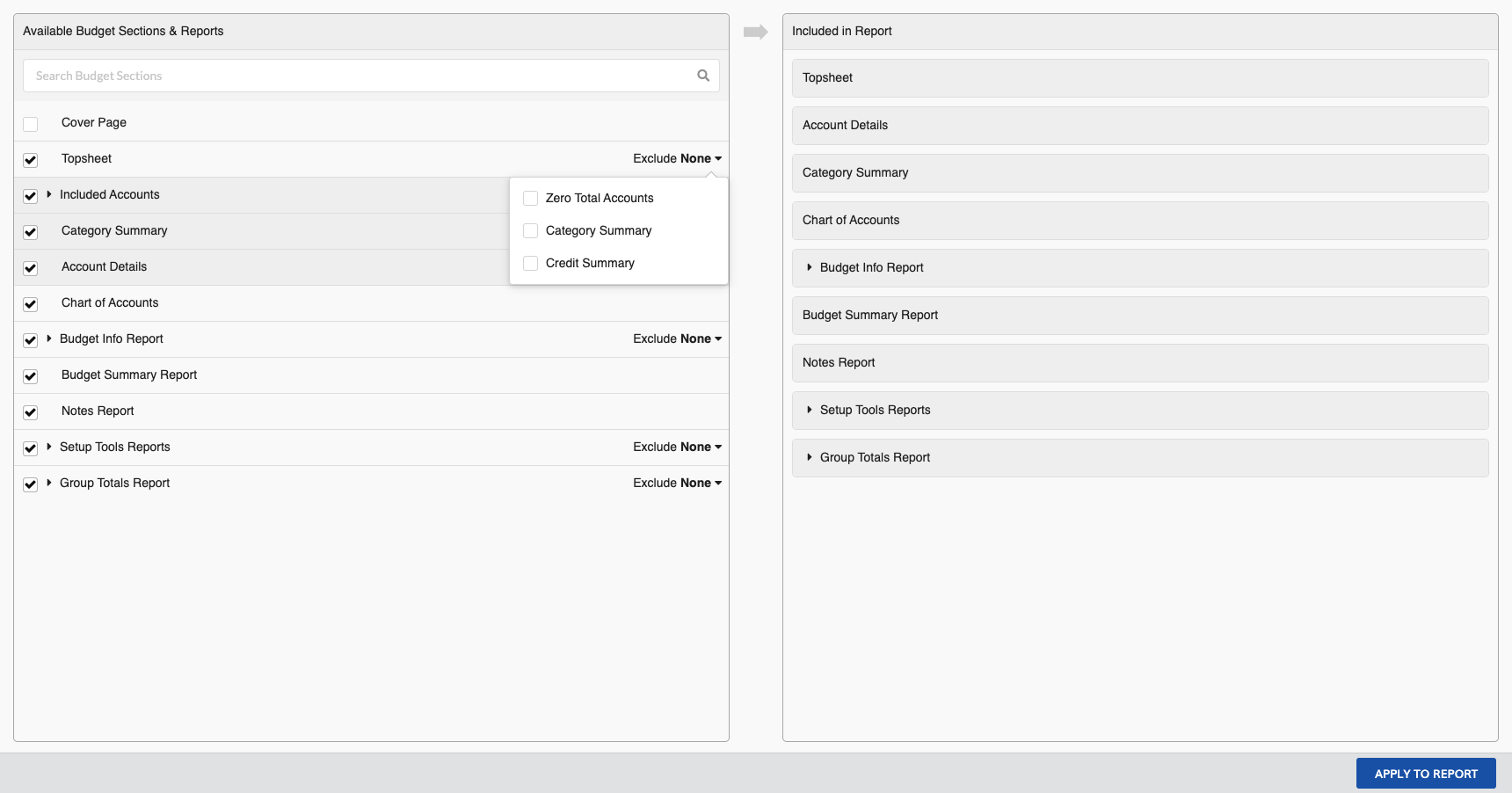
For the Category Summary and Account Details reports you can hide some accounts from your report based on a lack of content. To do so:
- Click the
Excludeoption to the right ofIncluded Accounts - Select which types of lines to exclude
| Type | Description |
|---|---|
| Empty Accounts | Any Accounts with no Detail Lines will not be included. Note: Some accounts may include blank Detail lines that are still included. |
| Zero Total Accounts | Any Accounts that have a 0 Total (after suppressed lines and calculations are taken in to account) will not be included. |
| Suppressed Detail Lines | Detail lines that have "Suppressed" Groups applied will not be included. See Groups Setup for more details. |
For the Account Details report you can also choose to exclude the Fringe Breakdown. This hides the details of which fringes are being calculated, but does not hide the fringe totals.
Topsheet Exclusion Options
The Topsheet section has its own Exclude options. Click Exclude to the right of Topsheet to toggle any combination of five optional exclusions:
| Option | What it does |
|---|---|
| Zero Total Accounts | Hides any account with a zero Total (after suppressed lines). The category stays visible if other accounts in it are non-zero. |
| Category Summary | Hides the category summary roll-up row. The line items remain; the parent total is suppressed. Use this when the audience knows the categories and you want a one-line-per-account view. |
| Credit Summary | Consolidates credit line items into a single Credits total row. Use for executive presentations. |
| Total Charges | Hides the Total Charges line below the production totals. The charges themselves remain in their accounts. |
| Total Fringes | Hides the Total Fringes line that appears when fringes are posted at the Budget level. Fringe values still roll into the Grand Total. No effect under Production / Category / Account posting modes. |
Collapse Details and Page Break Controls
These formatting toggles apply across the report:
- Collapse Details — collapses detail rows to a one-line summary per account. Section and report totals hide when this is on, so summarized rows don't mix with grand totals.
- No Spacing Between Sections — removes blank padding lines between reports.
- Page Break — toggles page breaks between sections. With page breaks off, use the section dropdown in Report Setup to navigate.
Hover any toggle for its tooltip description.
Report Selections
The reports you output will be based on selections made in the Included Sections page. To see all the possible reports make sure to expand the Setup Screen Reports sub-header.
| Report | Description |
|---|---|
| Cover Page | Shows or hides your Cover Page |
| Topsheet | Matches your budget topsheet. All categories are shown. All report subtotals and totals are shown. |
| Category Summary | Shows the categories and their supporting account totals as selected in Included Accounts. Report subtotals and totals may be hidden if supporting accounts are not selected to be included. |
| Account Details | Shows categories, accounts, and supporting detail lines as selected in Included Accounts. Optional exclusions: Category Totals (suppress category subtotal rows) and Account Level Subtotals (hide from Category Summary while keeping the calculation). |
| Chart of Accounts | Shows all Category and Account numbers for your budget. |
| Group Totals | Renders Setup Groups as a flexible report section with category-level customization and granular total exclusions (10.31.10). |
| Budget Information Report | Single-page summary of the budget metadata, available as a standalone section in Included Sections (10.31.10). |
| Notes Report | Shows all Notes across all Categories, Accounts, and Detail Lines. |
| Setup Screen Reports | Shows all data for the selected Tools as entered in the Setup screens. |
Note: For a specific Setup Screen Report to be included in your output both the Setup Screen Report parent and the specific report have to be checked.
You can see your selected reports in the preview pane on the right hand side of the screen. If you want to you can drag-and-drop reports in the preview pane to re-order them.
Group Totals Report
The Group Totals report renders Setup Groups as a flexible report section.
- In
Included Sections, expandSetup Screen Reportsand checkGroup Totals - Click
Excludenext to Group Totals to suppress any of: category-level breakdown, section totals, report totals - The report respects the Display Order set on each Group in Groups Setup
Budget Information Report
The Budget Information report shows a single-page summary of the metadata fields configured in Budget Info, plus the standard auto-generated fields rendered by MMB (currency, totals roll-up, last-saved info).
To include it, check Budget Information Report in Included Sections. It does not require a parent checkbox and appears wherever you drag it in the preview pane.
Setup Screen Report Filtering
Each Setup Screen Report can be filtered so you print only the categories you need.
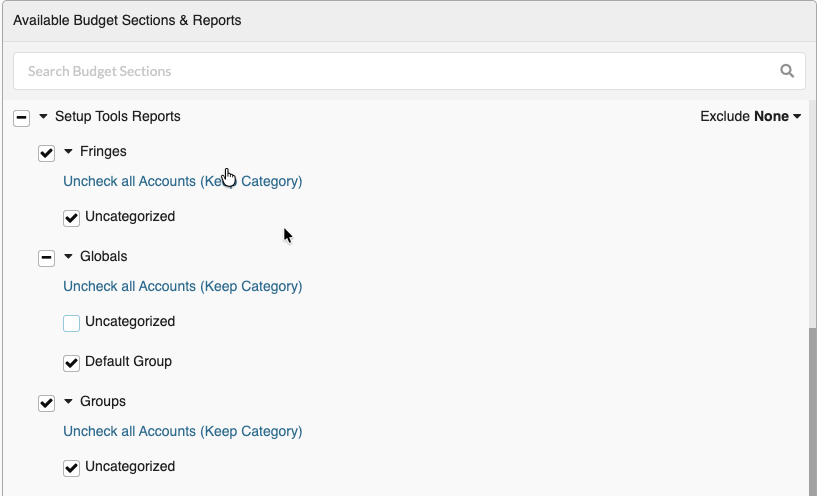
- Expand
Setup Screen Reports, then expand a tool report (Fringes,Globals,Locations,Sets, orUnits) to reveal a checkbox for each category - All categories are checked by default
- Each category you keep checked prints as its own table with its own header and a page break
The Currencies report has no categories and prints as a single list. The Credits report filters by individual credit name rather than by category.
Category order within each Setup Screen Report follows that tool's sort order in Budget Setup, including a custom order, and is independent per tool.
Decimal Display in Reports
When decimal display is turned on in System Preferences, you can still turn it off for an individual report. Use the decimal display control in Report Setup to show whole numbers on a specific report while your on-screen totals keep showing cents.
Applying Selections
Once you have made all the selections you want, click APPLY TO REPORT to close this window and return to the Report Setup page.