Budget Navigation
Movie Magic Budgeting 10 offers intuitive navigation throughout the structure of your budget.
Top Navigation Bar
When a budget is open the top navigation bar gives you quick access to key features.

| Button | Action |
|---|---|
| Home Button | Show the Open Budgets to open another budget or otherwise manage your projects. |
| Send Button | Send a copy of your budget to another Movie Magic Budgeting user. |
| Reports | In the drop-down select Report Setup to setup, preview, and generate reports from your budget. Or select Budget Comparison to generate a report when comparing budgets. |
| Setup | Open the Setup tables to adjust your tools such as Locations, Fringes, Globals, etc. The system will open the last Setup table you visited. |
| Compare | Compare the current open budget to up to 15 other budgets. |
| Find | Find lines in your budget based on specific tools, descriptions, or rates |
| Save Button | Click to save changes to your current budget when Autosave is off. |
| Autosave | Click this toggle to turn Autosave on or off. |
| Tools | Click this toggle to show or hide the Apply Tools pane |
| Your Subscription | The icon at the far right shows your status (green for online, red for offline). Click to Manage your Subscription (opening my.ep.com in your default browser) or to Log out. |
Budget Tabs
If you have more than one budget open each budget will have its own tab. Switch between budgets by clicking that budget's tab. The active budget tab is highlighted.
Reordering Tabs
Drag any tab within the tab bar to reorder it. You can also drag a tab across panes in Split-Screen Mode to move it to the other side.
For keyboard-only reordering, open the Tab Overflow dropdown (see below) and use the up and down arrows next to any tab name.
Tab Keyboard Shortcuts
- Switch to the next tab:
CTRL + TABon a PC,CMD + TABon a Mac - Switch to the previous tab:
CTRL + SHIFT + TABon a PC,CMD + SHIFT + TABon a Mac
Closing a Tab
- Click the
Xon the right side of any tab to close that budget - Middle-click (scroll wheel click) on a tab also closes it
- Right-click a tab and choose
Close Budget,Close All But Active, orClose All Budgets
Right-Click Context Menu
Right-click any budget tab (or CONTROL + CLICK on a Mac) for these actions:
RenameClose Budget,Close All But Active,Close All BudgetsOpen in Split ScreenCreate Sub-Budget
Tab Overflow Dropdown
When you have two or more budgets open a dropdown arrow appears at the right end of the tab bar. Click it to see the full untruncated name of every open budget. Use the up and down arrows next to a name to reorder that tab in the bar.
Long Tab Names
Long budget names truncate from the middle so both the beginning of the name and the version suffix stay visible. Hover any tab for the full name in a tooltip.
Budget Pane
A Topsheet organizes each Budget. Topsheets contain Account Categories made up of Accounts. Individual Detail Lines make up each account.
To view more detail in a Category or Account:
- Double click the line number on the far left of the row you want to access.
- When a row is highlighted, you can also use the shortcut keys:
CMD + DOWN ARROWon a MacCTRL + DOWN ARROWon a PC
To go back up a level from Details or Category:
- Click the breadcrumb navigation at the top of the budget pane.
- To exit any level, you can also use the shortcut keys:
CMD + UP ARROWon a MacCTRL + UP ARROWon a PC
To navigate to other accounts in the Category or Detail Account view:
- Click on the drop-down menus in the breadcrumb.
- To switch to the previous or next accounts in the current section, you can also use the shortcut keys:
CMD + LEFTorRIGHT ARROWon a MacCTRL + LEFTorRIGHT ARROWon a PC

When using the shortcut keys, if you reach the end of the current category or account, the system will continue to the next category or account.
See Also:
Grid Zoom
Use the zoom control in the budget grid toolbar to fit more rows on screen.
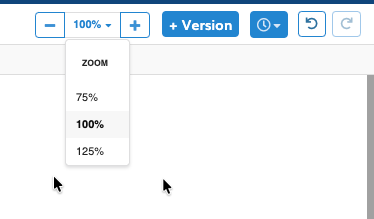
- Click
-to zoom out or+to zoom in, stepping by 5% - Use the dropdown to jump to
75%,100%, or125% - Press
CTRL + 0on a PC orCMD + 0on a Mac to reset to 100%
Zoom affects the budget grid only, not printed reports or PDF exports. Your zoom level is saved per budget. Set a default for new budgets under System Preferences. In Split-Screen Mode each pane zooms independently.
Apply Tools Pane
The Tools Pane can be hidden or displayed by use of the Tools Switch on the top right of the Main Budget Window. Use the tools toggle to show or hide the Apply Tools pane.
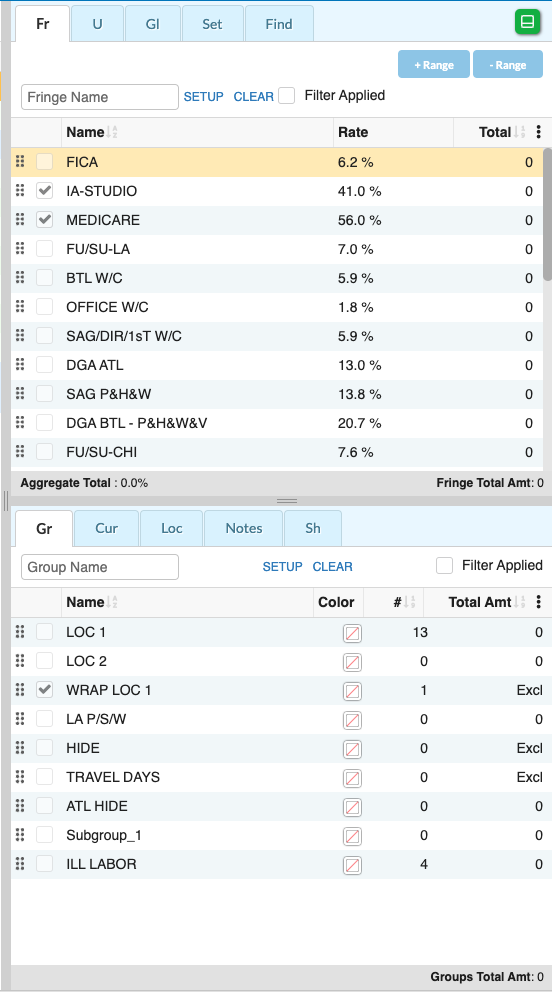
Click the green Dock button  to switch the display of the tools pane between vertically on the right or horizontally along the bottom of the window.
Tabs along the top of Apply Tools pane organize each tool so you can add, remove, or review them in your budget at any time. The Apply Tools pane is also where you can access the Find and Notes tools.
| Tab | Tool |
|---|---|
| Fr | Apply Fringes |
| Cr | Apply Credits from the Topsheet at the category or account level |
| U | View or apply Units in the budget |
| Gl | View Globals used in the budget |
| Set | View or apply Sets in the budget |
| Find | Find lines in your budget based on specific tools, descriptions, or rates |
| Gr | Apply Groups |
| Cur | View or apply Currencies in the budget |
| Loc | View or apply Locations in the budget |
| Ch | View charges and exclude categories or accounts |
| Notes | Add or view Notes in the current account |
| Sh | View or apply Shortcuts |
See Also: