Apply a Credit
Once a Credit has been added in the Setup screen it can be applied or unapplied to your budget as needed.
Get to the Credits Setup screen by RIGHT-CLICKING a row in the Topsheet and selecting Apply/Create a Credit, clicking Cr (credits) in the top navigation bar, or using the CTRL + \ or CMD + \ hot key.
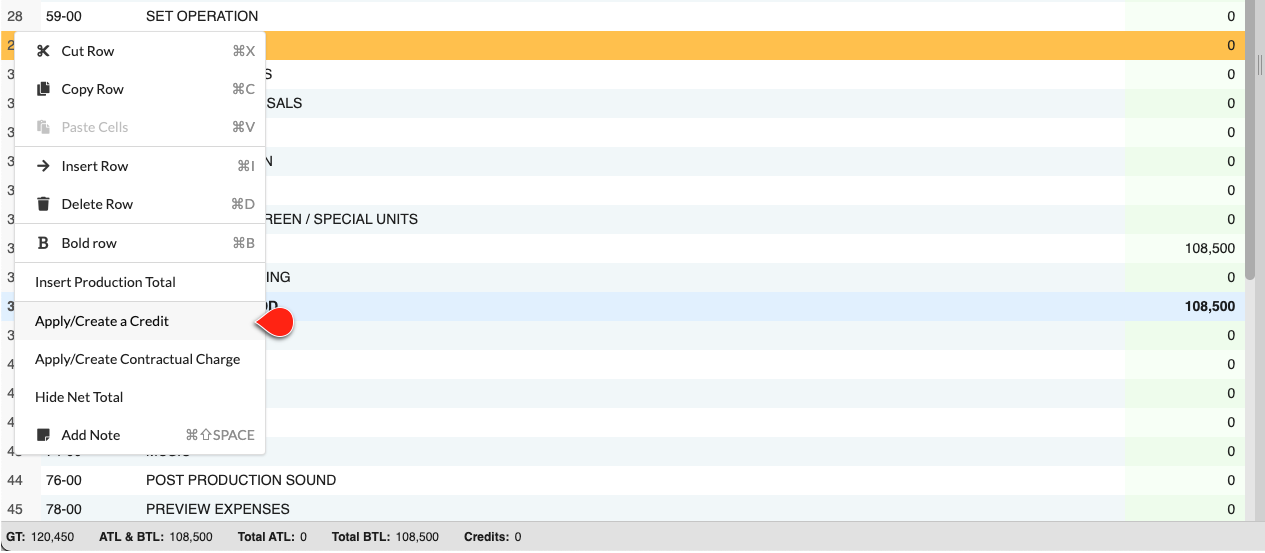
Applying a Credit
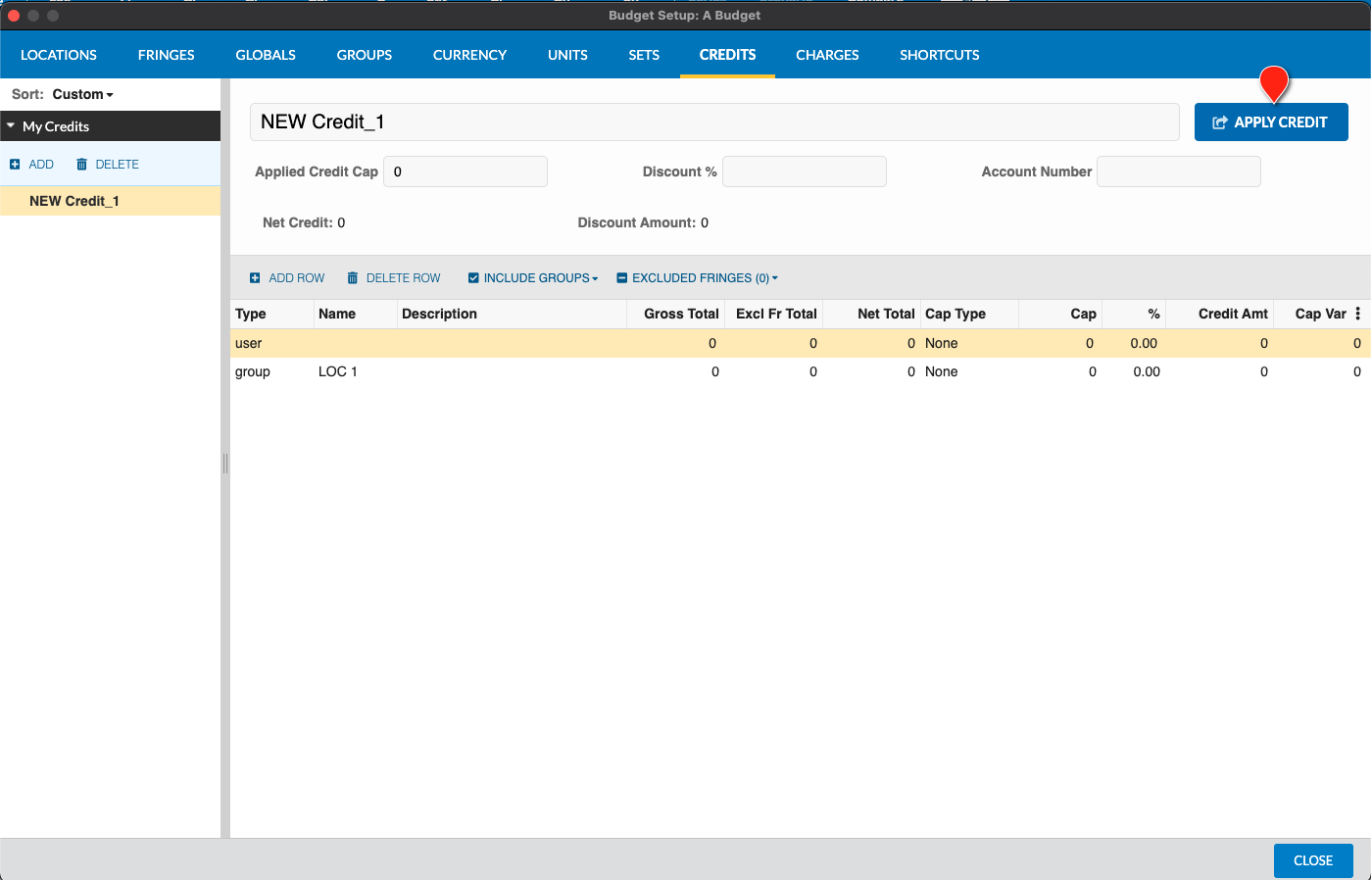
- In the Credit Setup screen...
- Select the credit you want to Apply
- Click the
APPLY CREDITbutton
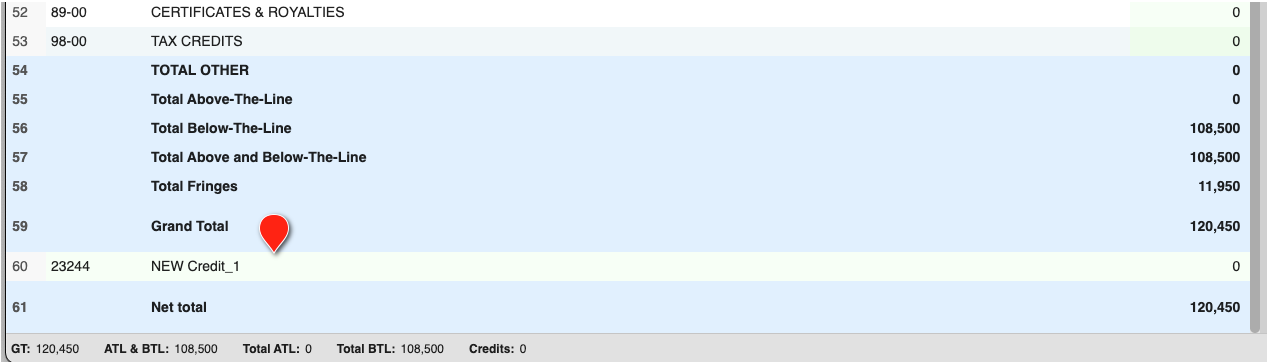
The Credit will now appear in the Topsheet below your Grand Total. Your budget will be recalculated automatically and a Net Total displayed at the bottom.
Credits Tab in the Apply Tools Pane
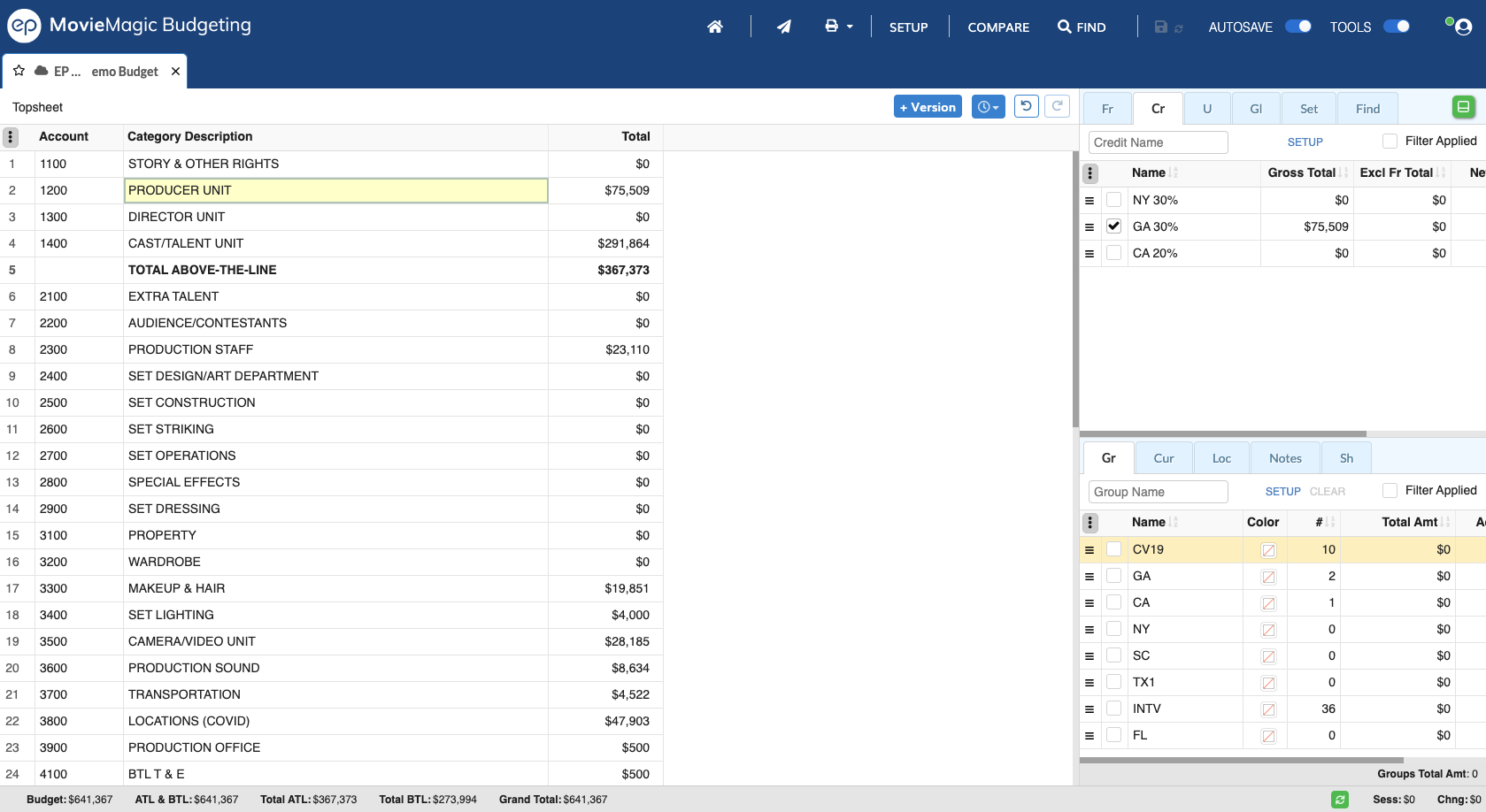
The Cr tab in the Apply Tools pane (after Fr) lets you apply credits directly from the Topsheet without opening the Credit Setup screen each time.
To apply a credit from the Topsheet:
- Open the
Crtab in the Apply Tools pane - Highlight one or more rows in the Topsheet
- Apply the credit you want from the
Crtab- Highlighting category rows creates a category-type association
- Highlighting account rows creates an account-type association
- Credit totals update immediately in the Topsheet and the Apply Tools pane
To remove a credit, select it in the Cr tab and unapply it. You can also use the existing right-click Apply/Create a Credit flow on the Topsheet row to manage individual credit applications.
Credit Summary Columns
Click the menu button (three vertical dots) at the right of the Cr table header to show or hide these summary columns:
| Column | Shows |
|---|---|
| Gross Total | The total of all rows in the underlying credit before fringes are excluded |
| Excl Fr Total | The total excluded by Excluded Fringes (see Credits Setup) |
| Net Total | Gross Total minus Excl Fr Total |
| Credit Amt | The credit value applied to the budget after caps and discounts |
Un-Applying a Credit
- In the Credit Setup screen...
- Select the credit you want to un-apply
- Click the
UN-APPLY CREDITbutton
The credit will be removed from the Topsheet. Your budget will be recalculated automatically.
Hiding Credits & Net Totals
If you want to keep all of your Credits and the final Net Total accurate in your budget, but temporarily hide them (perhaps for a specific Report), you can RIGHT-CLICK any row in the Topsheet and select Hide Net Total.
To reveal those lines again RIGHT-CLICK any row in the Topsheet and select Show Net Total.